Bulk updates to pick up and drop off times for services can be achieved when using the Booking Operations function Update Pickup and Drop off. Some organisations may need the facility to locate or update a number of services at once.
The Update Pick up/Drop off menu option allows users to set filter options to return required results, and amendment to pick up/drop off points or times can be performed to multiple services across multiple bookings.
Updating Pick Up & Drop Off details
-
From the Home menu, select
 Home > Operations > Booking Operations > Update Pickup and Dropoff.
- Click the Home Menu to expand it:
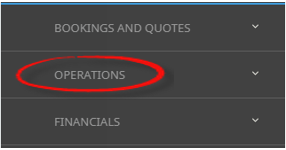
- Click the Operations menu option to expand it:

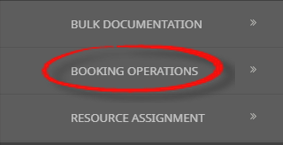
- Click Booking Operations menu option to expand it:

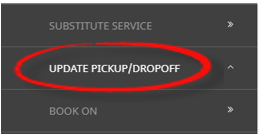
- Click Update Pickup/Dropoff to open the Update Pickup/Dropoff screen:

- Click the Home Menu to expand it:
-
On the blankUpdate Pickup/Dropoff screen, the Service Tab will open, select fields to narrow the search filter results.
NOTE: 'Save' will not enable until at least one filter field from any tab is entered. Tabs available are the Booking Tab, Analysis Tab (Booking), Service Tab and Analysis Tab (Service).
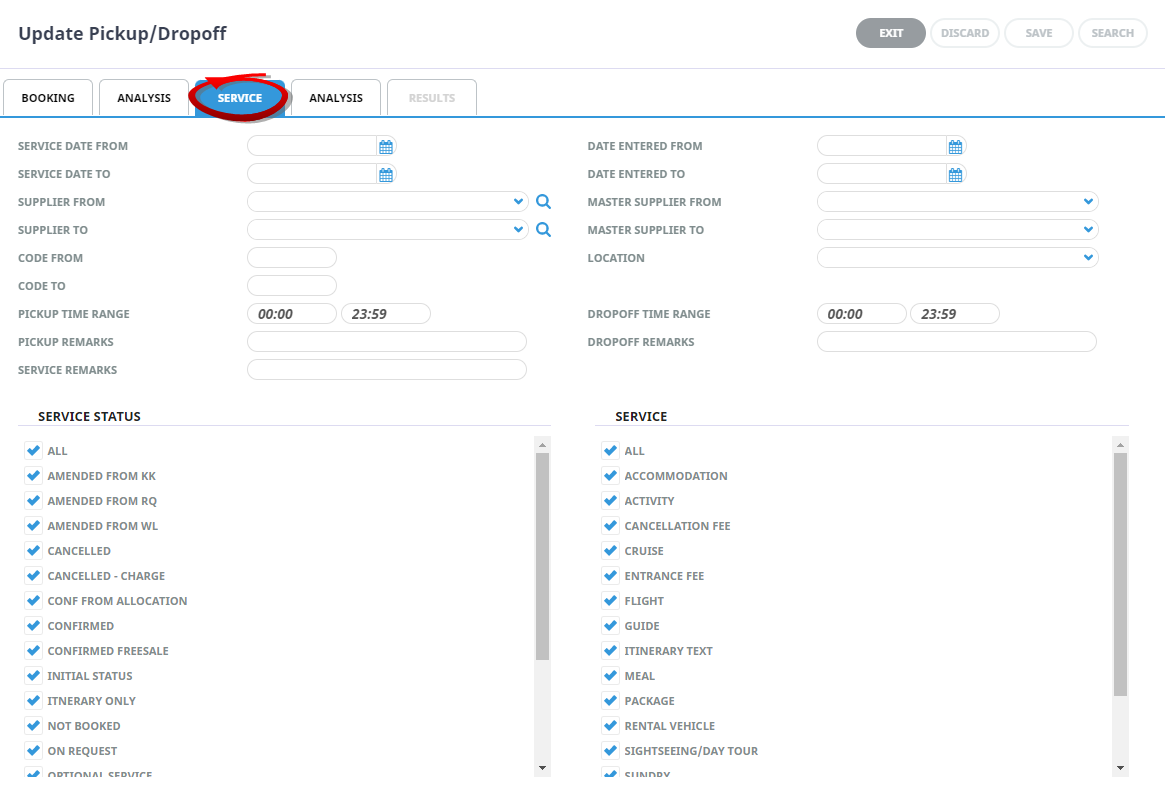
- Check the completed screens.
-
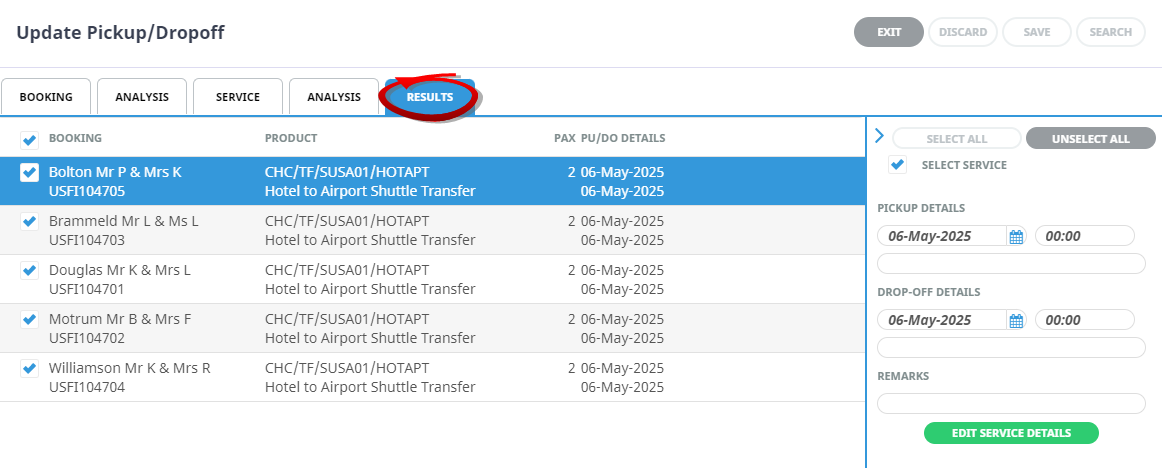
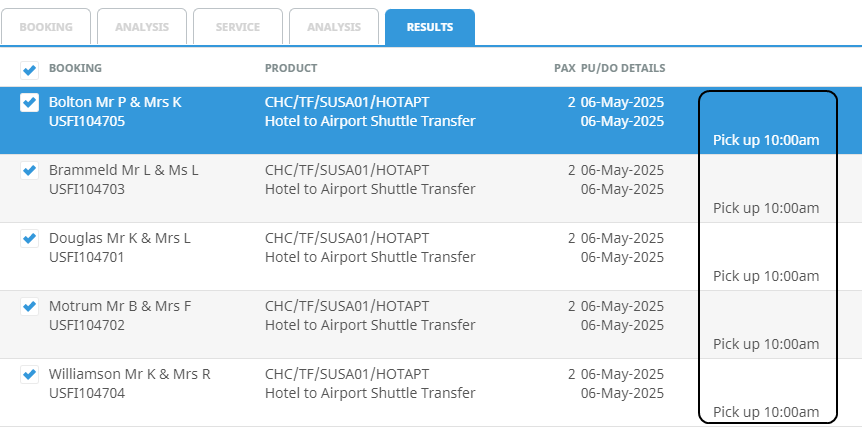
Click on theResults Tab. Select the services to update. There are three ways to select:
- Using the check-box.
- Or clicking on the Booking Service.
- If all services are to be updated, use Select All for bulk selection.
-
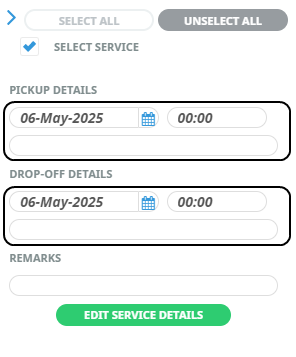
Update thePick Up/Drop Off details on the right of the screen, and select Save.
-
Or click

- ClickOK to keep the changes and save or update the entry.

-
ClickExit to discard any changes.

- If OK was selected a Summary will appear with the number of successful packages to be updated.
-
ClickOK to keep the changes and save or update the entry.
-
TheUpdate Pick Up and Drop Off Results tab will re-display, the service details will have updated and can be viewed from here.
About the Service Tab
Service Date From/To
This is the date of the service within a booking. If selection for a range of dates is entered here Pick Up and Drop off details for services that fall within the date range provided will be display in the results screen.
Supplier From/To
Used to select Pick up and Drop off details with a specific, or range of, supplier(s) codes matching the selection.
Code From/To
This is the service code or range of service codes.
Pick up Time Range
Used to select a range of pick up times for services that fall within the time range provided.
Pick up Remarks
Used to select specific pick up points selected in the booking.
Service Remarks
This selection can be used to filter by specific remarks stored within the service.
Date Entered From/To
This is the date the booking was entered. If selection for a range of dates is entered here Pick up and Drop off details for bookings that were created within the date range provided will be display in the results screen.
Master Supplier From/To
Used to select Queue Messages with a specific, or range of, Master Supplier code(s) matching the selection.
Location
The Queue Message for a location code attached to the service.
Drop off Time Range
Used to select a range of drop off times for services that fall within the time range provided.
Drop off Remarks
Used to select specific drop off points selected within the booking.
Service Status
By default, all service statuses are checked and services that have those status will be selected. Un-check statuses that are not required.
Service Type
By default, all Service (Types) are checked and Queue Messages for those service types that have been selected will return results.
Analysis Tab (Booking and Agent Analysis)
Booking Analysis
The top two rows of this tab are the 6 Booking Analysis codes. These are booking level selections.
Agent Analysis
The bottom two rows of this tab are the 6 Agent Analysis codes. These are Agent Analysis codes attached to the booking.
Analysis fields can be expanded or minimised by using the + or - function.
Booking Tab
Travel Date From/To
Travel date for bookings is the date that appears in the header of a booking this is generally the date of the first service. This date range field is used to select bookings with a specific date, or Pick up and Drop off details for bookings that fall within a range of travel dates.
Booking Name
This is the name of the booking that appears in the header of a booking.
Booking Ref From/To
Used to select a specific booking reference or range of references.
Agent From/To
Used to select Pick up and Drop off Details with a specific, or range of, agent(s) codes in the booking header matching the selection.
Consultant
Selecting this field will filter bookings by the consultant code attached to the booking.
Last Service Date From/To
Used to filter by the date of the last service or range of dates.
Date Entered From/To
This is the date the booking was entered. If selection for a range of dates is entered here Pick up and Drop off details for bookings that were created within the date range provided will be display in the results screen.
Booking Type
Used to filter by booking type, FITs, Groups or All booking types.
Master Agent From/To
Used to select Pick up and Drop off details with a specific, or range of, Master Agent code(s) in the booking header matching the selection.
Currency
Used to select bookings with a particular booking currency.
Booking Status
By default, all booking statuses are checked and services in bookings that have those status will be selected. Un-check statuses that are not required.
Branch
By default, all branches are checked and services in bookings that have those branches will be selected.
Department
By default all departments are checked, services in bookings that have those branches will be selected.
Analysis Tab (Supplier and Product Analysis)
Supplier Analysis
The top two rows of this tab are the 6 Supplier Analysis codes.
Service Analysis
The bottom two rows of this tab are the 6 Product (Service) Analysis codes. These are Product Analysis codes attached to the Service.
Analysis fields can be expanded or minimised by using the + or - function.