Once bookings have been assigned to Resources the assignment at any time can be edited, additional services (or bookings) can be included, and pick up and drop off information can be updated if required.
Edit an Assignment
-
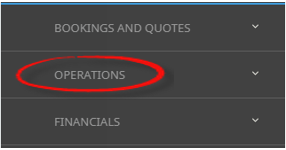
From the Home menu, select
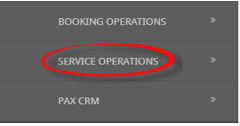
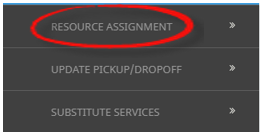
 Home > Operations > Service Operations > Resource Assignment.
- Click the Home Menu to expand it:

- Click the Operations menu option to expand it:

-
Click Service Operations menu option to expand it:

- Click Resource Assignment to open the Resource Assignment screen:

- Click the Home Menu to expand it:
-
Expand the Resource Assignment Filters by clicking the + next to the Resource Assignment Filters. Select the requiredfilters to narrow the results of the resources already assigned.

-
If you want to keep the changes, clickOK.

- A list of existing Resource Assignments results will be returned and selection can be made by clicking on the Resource Assignment line.
-
On the Edit Assignment screenAssignment Tab, edit the required fields.
The most common amendment will be updating the Assignment Status, or adding Assignment Notes. There may be occasions where a vehicle or driver may need to be re-assigned.
The number of adults, children and infants showing as booked on this assignment cannot be altered as they are totalled from the services booked within the FIT or Groups Bookings.
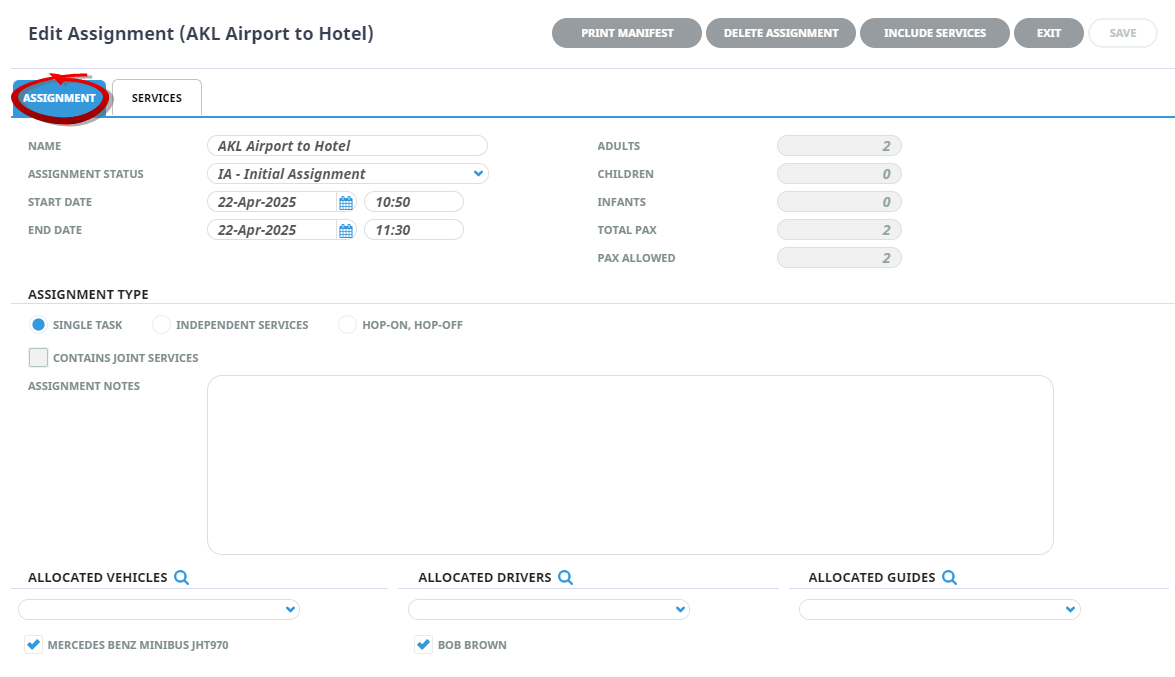
- Check the completed screen.
-
ClickSave to keep the changes.

-
ClickExit to discard any changes.


Include Additional Booking (Services)
Follow the above procedure to procedure number 4.
-
On the Edit Assignment screen selectInclude Services.

-
On the Include Services screen, select Service Date From/To, and select required filters to return results based on the filters entered.
NOTE: The Service Tab will open, required filters can be selected from within the Booking Tab, Analysis Tab (Booking and Agent), Service, or Analysis Tab (Supplier and Product). Click on the links to find out more about the fields.
The Service From /To dates will default to today’s date, these can be changed depending on the required dates.
-
ClickSearch.

- Select the bookings using the Select check boxes next to each booking or use Select All.
-
ClickOK to keep the changes and save or update the entry.

-
ClickExit to discard any changes.
-
- On the Edit Assignment Screen new services can be saved by selecting Save. The screen can be exited by selecting Exit, or further services can be included by selecting Include Services.
Adding Pick up and Drop off Details to an Assignment.
Follow the above procedure to procedure number 4.
- On the Edit Assignment screen, select the Services Tab.
- Highlight the booking (service) and insert the Pick Up and Drop Off details.
-
SelectEdit Service Details.

- Continue to edit the pick up and drop off details for the services within the assignment.
-
ClickSave to keep the changes.
-
ClickExit to discard any changes.
About Filter Headings
All Assignments Within
A date or range of dates can be entered to filter for a specific date or range of dates.
NOTE: Assignment Category - This field is enabled if organisations are using multiple assignment categories to assign their services to more than one assignment.
Assignment Name
The name given to the assignment, results can locate specific assignments by name.
Assignment Status
Specific assignment status can be selected from a pre-defined list of status providing results for specific statuses.
Allocated Vehicles, Drivers and Guides
Drop down selection of available resources can be selected here, and any pre-selected resources will display, results can be filtered by Vehicle, Driver and or Guide.
Booking Name
Individual clients can be found by using the booking name filter.
Branch/Department
Bookings with specific booking branch or booking department can be found when filtering by Branch or Department.
Agent
Users can filter assignments by agents attached to bookings.
In this example we have narrowed the search by selecting a specific date, the name of the assignment, the status of the assignment, and we have even defined the vehicle and driver.
NOTE: It is not necessary to define as many filters as we have in the example.

The more filters used the fewer results will be returned.
About Result Columns
Start Date/End Date
Assignment start/end date and time.
Name
The name given to the assignment.
Assignment Type
Single Task, Independent Service, or Hop on Hop off.
Assignment Status
Specific assignment status for the assignment.
Pax
Number of pax included in the assignment.
Bookings
Number of bookings included in the assignment.
Allocated Drivers, Vehicles and Guides
Resources assigned.
About Edit Assignment Fields
The Edit Assignment screen is split into two tabs, the Assignment Tab which displays the details of the current assignment, and the Services Tab which displays all service line details.
Assignment Tab
Name
The name given to the assignment within the previous screen assign tab.
Assignment Status
Specific assignment status can be selected from a pre-defined list of statuses.
Start/End Dates
A specific date or a range of dates are available.
Adults, Children, Infants, Total Pax and Pax Allowed
This information is read only and displays from the totals in the previous screen. The information cannot be amended here.
Assignment Type
- Single Task - All services on the assignment are to be treated as a single task for the resource assigned to them. This means that any minimum/maximum number of passenger restrictions will be based on the total number of passengers in the service assignment.
- Independent Services - Each service on the assignment is to be operated independently of each other. This type of assignment would be used where you are assigning resources on a daily/weekly basis and each service is a task in its own right.
- Hop-on/Hop-off - Multiple services are assigned that may or may not occur simultaneously so you have the situation where multiple services overlap.
- Contains Joint Services - This radio button is read only and displays that the assignment contains joint services that share costs, more detail is discussed within the Joining Services and Sharing Costs procedures.
Assignment Notes
Free format note field can be used to insert specific assignment notes.
Allocated Vehicles, Drivers and Guides
Drop down selection of available resources can be selected here and any pre-selected resources will display with a check box (to un-select if necessary).
Service Tab
NOTE: The left of the screen will show a list of groups if more than one group was selected when assigning resources. Users will work with one group at a time by selecting each group separately and a list of services attached to each group is available when using the services tab.
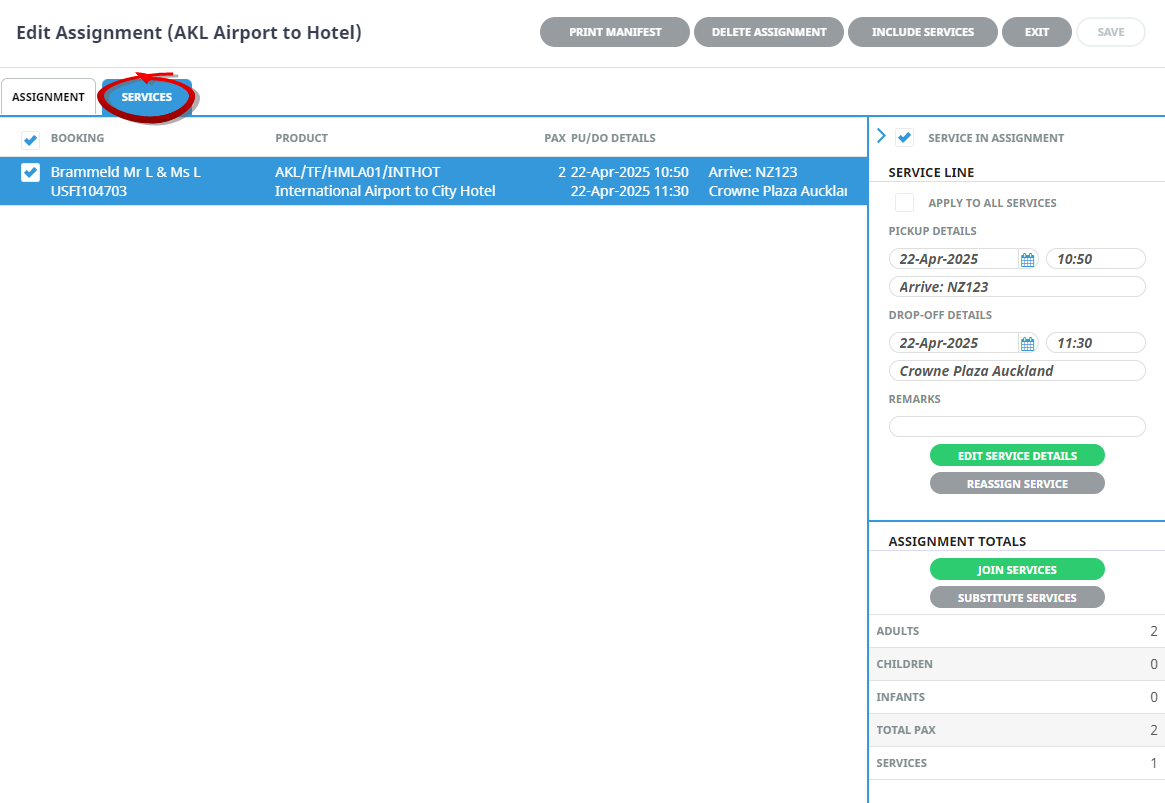
Bookings
A list of bookings will appear for the services that have been selected for this assignment.
Product
Shows the service that has been selected.
Pick Up/Drop Off Details
The column within the booking list provides information that has been inserted into the booking for clients pick up and drop off information. This information can be amended by highlighting a booking in the booking list. When a booking/service is highlighted the pick up and drop off date, location, time and remarks fields will enable (to the right of the screen in the Service Line section). Allowing users to amend the information individually for each booking, or apply the amendment to all services.
Assignment Totals Section
Total pax numbers are provided per assignment, showing the number of services, adults, children and infants included in the assignment.
Join/Unjoin Services
The option to join or unjoin the services is available in the services tab. Information on joining and un-joining services is provided in the Joining Services and Sharing Costs procedure.
Substitute Services
The option of substitute the services is available in the service tab and information on substitution of services is provided in the Substitute Service procedure.