A PCM may be copied to a new name/travel date. First find and recall the PCM to be copied, then replace the existing PCM fields with new values. As the PCM details are copied, the new PCM will be re-costed based on the new Travel Date and Agent chosen.
Copy PCM
- If you haven't already done so, search for and retrieve a PCM to work with (see Retrieve an Existing PCM).
-
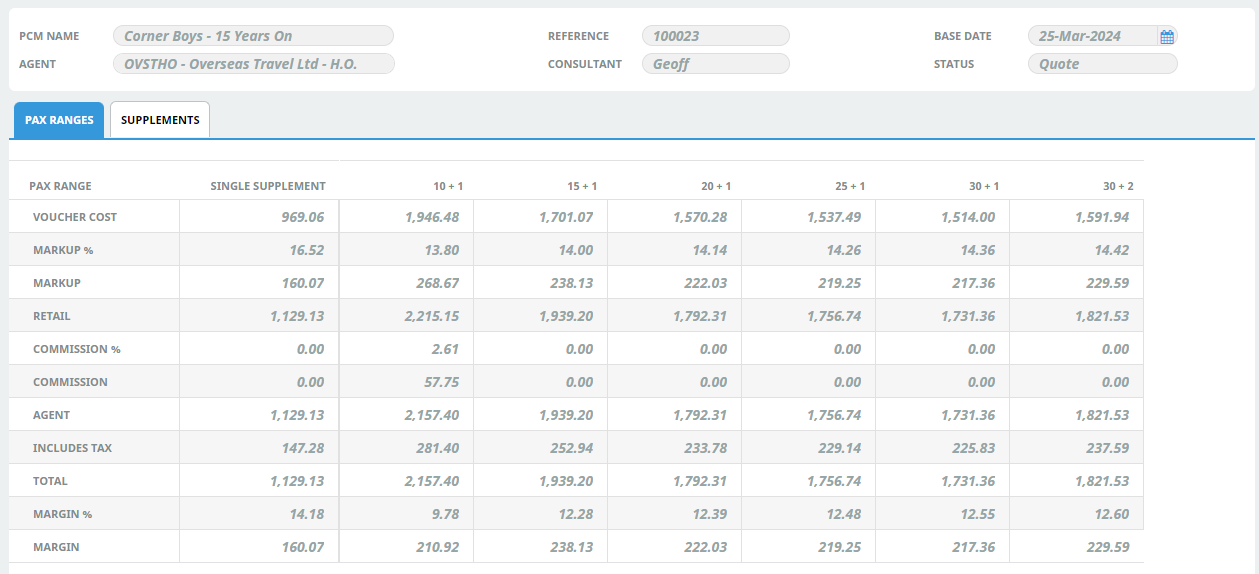
The default view for a PCM is the
 Dashboard View.
 From the PCM Quotes menu, selectPCM Quotes > PCM Details > General Setup click Copy PCM.

-
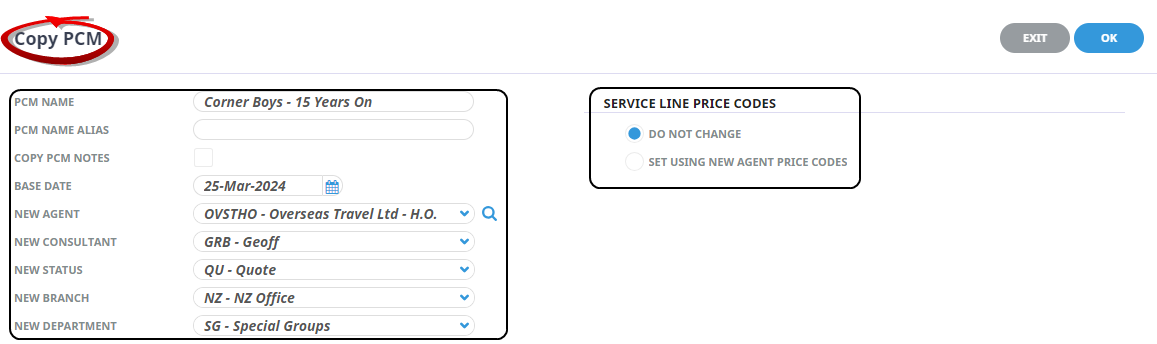
On theCopy PCM screen, give this new PCM a name by over-typing the existing name in the New Name field. Also update any other details in their respective New ... fields.
-
ClickOK to keep the changes and save or update the entry.

-
ClickExit to discard any changes.

About the Copy PCM Fields
PCM Name
Enter the name for the new (i.e. copied) PCM.
New PCM Name Alias
If the PCM Name Alias field is used for an alternative PCM name, enter the alias name for the new (i.e. copied) Quote.
Copy PCM Notes
All PCM notes will be copied to the new quote if the checkbox is selected.
Base Date
Enter the new base date (if applicable) for the new PCM.
New Agent
An alternative agent can be selected if required.
New Consultant
Select the Consultant Code as required.
New Status
Select the new (booking) status as required.
New Branch
An alternative branch can be selected if required.
New Department
An alternative department can be selected if required.
Service Line Price Codes
NOTE: This field should only be changed if the Price Code that is attached to the Agent needs to be overridden.
- Do Not Change - Checking this radio button keeps the price codes in the service line in the new PCM, the same as they were in the host PCM. This means that any service line price codes which may have been overridden in the host PCM will be retained in the copy.
- Set Using New Agent Price Codes – This setting uses the price code hierarchy attached to the agent in the copied PCM.