The Tour Window opens as a search screen and a booking must be retrieved before it can be viewed. Enter either a Booking Name or a Booking Reference and click the corresponding Search icon to retrieve a booking:

NOTE: The tour window is also available from within FITs and Groups for consultants to view the booking financial details. Viewing the Tour Window through Financials gives an accountant or financial employees an overview of a booking without having to go into FITs or Groups.
Enter partial details to display a list of matching bookings, then click the required booking to open it. Either field can be left blank and clicking either of the Search icons will open the full Booking Search screen. Refer to the FITs User Manual or the Groups User Manual for more information on the full Booking Search screen.
NOTE: Only one booking at a time can be viewed in the Tour Window.
View a Booking in the Tour Window
-
From the Home menu, select
 Financials > Tour Window.
- Click the Home Menu to expand it:

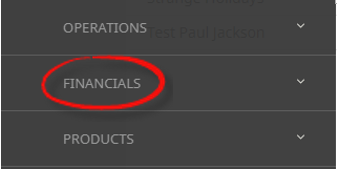
- Click the Financials menu option to expand it:

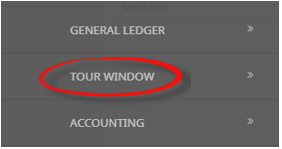
- Click Tour Window to go to the Tour Window application:

- Click the Home Menu to expand it:
- Search for and retrieve a booking to view using one of the search methods. For example:
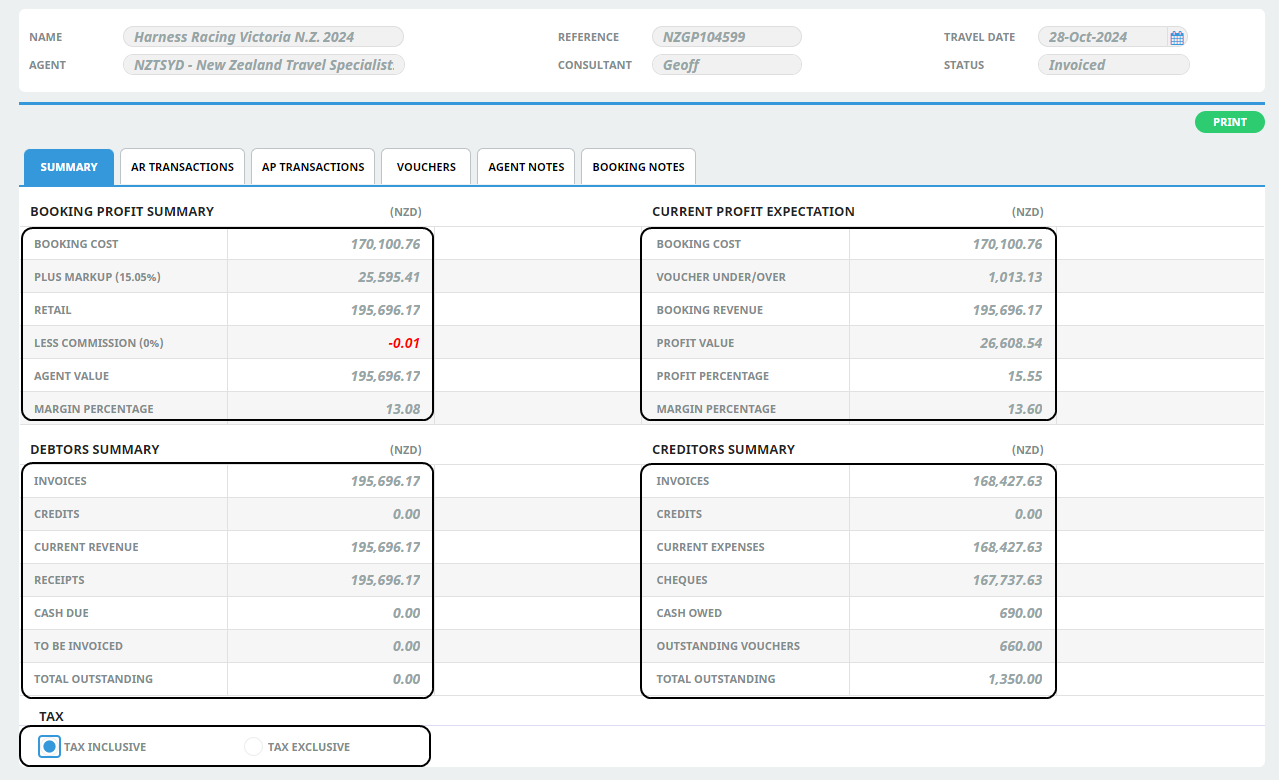
- By default, the Tour Window opens with the Summary tab displayed. Click another tab to view specific details.

NOTE: All Percentages are calculated to 6 decimal places, but are displayed to 2 decimal places.
NOTE: When a booking is first loaded in the Tour Window, the Tax radio button defaults to Tax Exclusive.
Summary Tab Sections
Booking Profit Summary
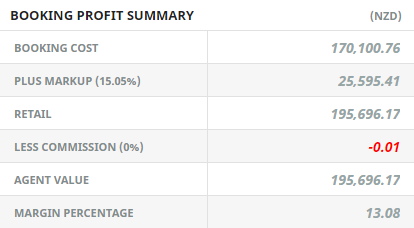
NOTE: The Booking Profit Summary section displays the total booking values from the Booking Header Screen.
Booking Cost
This is the total of the booking service costs — i.e., the amount that is expected to be paid to suppliers. In other words, the voucher cost.
Plus Markup
The amount that has been added at either database and/or booking level to obtain the retail value.
Retail
The sum of Booking Cost plus Mark-up equals Retail.
Less Commission
The amount of agents commission (if applicable) that the agent may be given. The commission amount displayed as a percentage of retail displays to the right of the commission amount.
NOTE: In the example above, the rounding value of -0.01 displays as a negative percentage value.
Agent Value
The sum of Booking Cost plus Mark-up less Commission. This is the amount expected to be collected from the agent.
Margin Percentage
The mark-up expressed as a percentage of Retail.
Current Profit Expectation
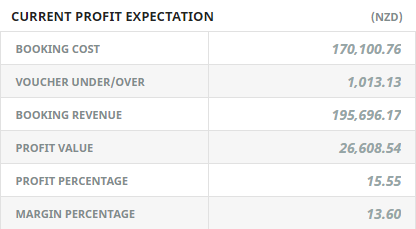
This section displays the Current profit based on financial transactions entered against the booking so far. The figures in this section will alter as debtors and creditors transactions are entered and if vouchers are reprinted with different costs.
Booking Cost
The booking vouchered value. The amount expected to be paid to suppliers.
Voucher Under/Over
The sum of any underpayment or overpayment of vouchers. Voucher Unders/Overs will only occur when there is a discrepancy between the creditors invoice value and the voucher value and the voucher is closed when the invoice is processed.
Booking Revenue
The sum of Debtors invoices less debtors credit notes issued for the booking.
Profit Value
Booking Revenue minus Booking Cost plus/minus Voucher Under/Overs.
Profit Percentage
Booking Profit (including Voucher under/overs) as a percentage of Booking Cost
Margin Percentage
Profit expressed as a percentage of Booking Revenue.
Debtors Summary
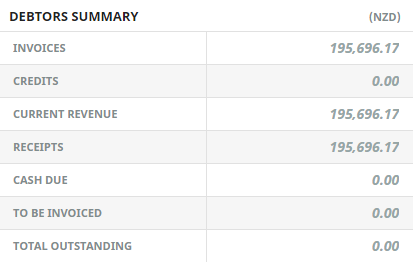
This section displays the Debtor (Agent) transaction values applying to the booking.
Invoices
The sum of all debtors’ invoices raised against the booking.
Credits
The total of all debtors’ credit notes raised against the booking.
Current Revenue
The sum of Invoices less Credits.
Receipts
The total of all debtors’ cash receipts issued against any invoice raised in the booking.
Cash Due
The sum of Current Revenue minus Receipts.
To Be Invoiced
The sum of Agent value less Current Revenue.
Total Outstanding
The sum of Agent value less Receipts.
Creditors Summary
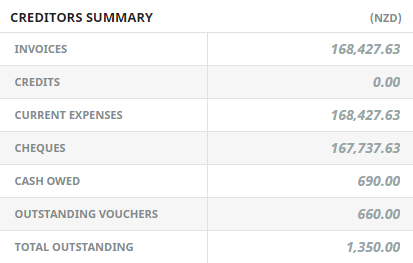
This section displays the Creditor transaction values applying to the booking.
Invoices
The total of creditors’ invoices entered for the booking.
Credits
The total of creditors’ credit notes entered for the booking.
Current Expenses
The sum of creditors invoices less creditors credit notes.
Cheques
The total of creditor payments made against creditor invoices entered for the booking.
Cash Owed
The sum of Current Expenses less Cheques - i.e., the value of creditor invoices processed that have not yet had cheques issued.
Outstanding Vouchers
The following sum is performed on any vouchers which are not closed: Voucher value less Creditor Invoice(s) less Creditor Credit Note(s).
Total Outstanding
The sum of Outstanding Vouchers plus Cash Owed.
Tax
Use these radio buttons to display the booking either Inclusive or Exclusive of tax.
Supporting Information
See also Tour Window Columns in the appendix.