NOTE: The Arrival/Departure Report is designed to be used with the Resource Assignment module. If the Resource Assignment function is not being used then this report can be used to output basic Pickup/Arrive - Drop-off/Depart information.
It can be used to produce a list of all arrivals/departures for transfer or flight services and can show pax arrival and/or departure dates for bookings of a certain status, or for a particular agent the booking is for.
Pick up and drop off details as well as any remarks are displayed. If the Resource Assignment module is being used, then Driver, Guide and Vehicle assignments for the services will also be output.
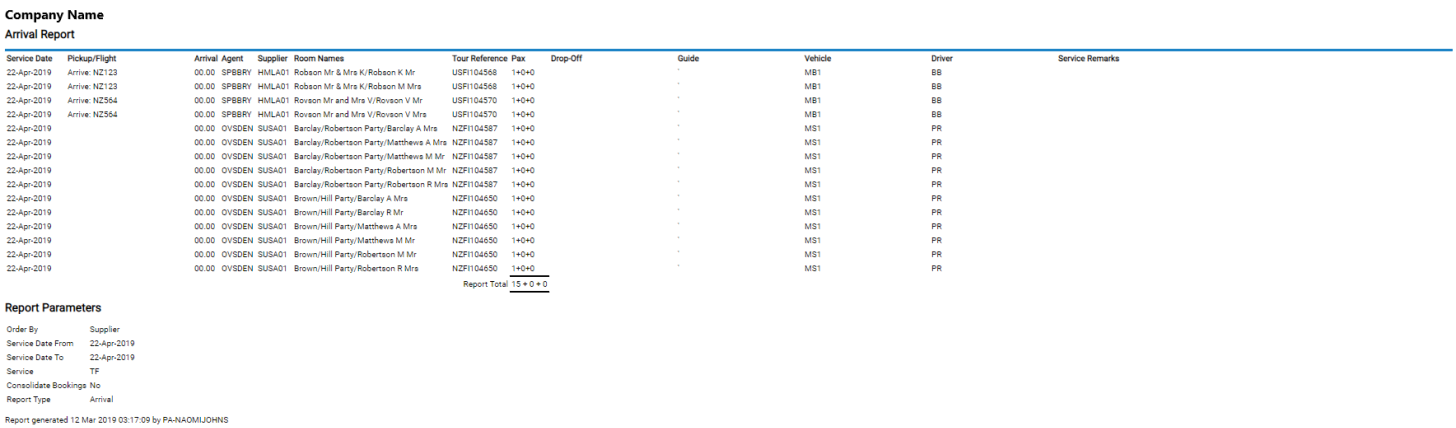
The Arrival/Departure Report includes the following information:
- Service Date
- Pick up/Flight Information
- Arrival (Time)
- Agent (Code)
- Supplier (Code)
- Room Names
- Tour Reference (Booking Reference)
- Pax (Adults + Children/Children Share + Infants)
- Drop Off Information
- Resource Assignment Guide (Code)
- Resource Assignment Vehicle (Code)
- Resource Assignment Driver (Code)
- Service Remarks
Report Parameters can include:
- Consolidate Bookings
- Report Type (Arrival or Departure)
- Order By, Driver, Vehicle or Guide
Generating an Arrival or Departure Report
-
From the Home menu, select
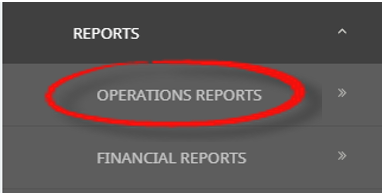
 Home > Reports > Operations Reports > Arrival / Departure.
- Click the Reports menu to expand it:

- Click the Operations Reports menu option to expand it:

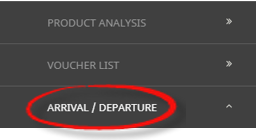
- Click Arrival / Departure to go to the Arrival / Departure Parameters screen:

- Click the Reports menu to expand it:
-
On the blank Arrival /Departure Parameters screen, the Service Tab will open. Select the required parameters for the Arrival/Departure Report.
NOTE: There are 4 tabs available to select parameters from. They are: Booking Tab, (Booking & Agent) Analysis Tab, Service Tab and (Product & Supplier) Analysis Tab.
- Check the Completed Screens.
- Click on the Other Tab. Select how the results are to be ordered and filtered in the report from the drop down selections or check boxes available.
- Select how the report is to display.
-
To view the report, clickView.

-
To Download the report to a PDF file, clickDownload PDF.

-
To Download the report to a CSV file, clickDownload to CSV.

-
To print from NX, clickPrint.


About Arrival and Departure Parameter Fields
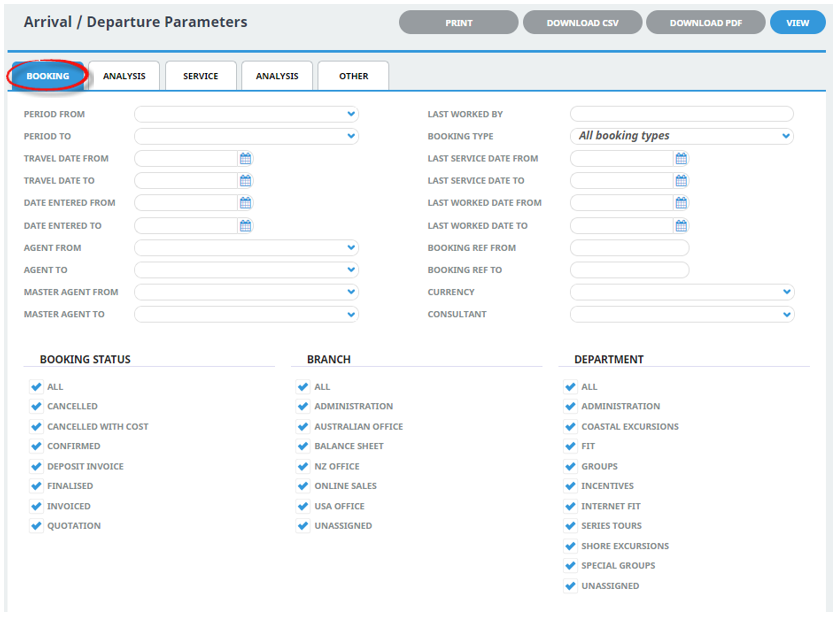
Period From and To - Travel date accounting period (or range of).
Travel Date From and To - Booking travel date (or range of).
Date Entered From and To - Booking date entered.
Agent From and To - Booking agent range available from the drop-down selection.
Master Agent From and To - Debtor Master Agent (unlinked) range available from the drop-down selection.
Last worked by - (Type) The name of the Tourplan user.
Booking Type - Drop-down selection available for:
- All booking types (default)
- FIT's
- Groups
Last Service Date From and To- Booking header last service date.
Last Worked Date From and To - Booking header last worked date.
Reference From and To - Full booking reference.
Currency - Drop-down selection of available currencies.
Consultant - Drop-down selection for booking consultants name and initials.
Booking Status - Multi select check boxes for available booking header statuses.
Branch - Multi select check boxes for available booking reference branch.
Department - Multi select check boxes for available booking reference department.
NOTE: Service Status, and Branch and Departments showing in the screen captures above are for training purposes. User company systems will reflect users organisational requirements.
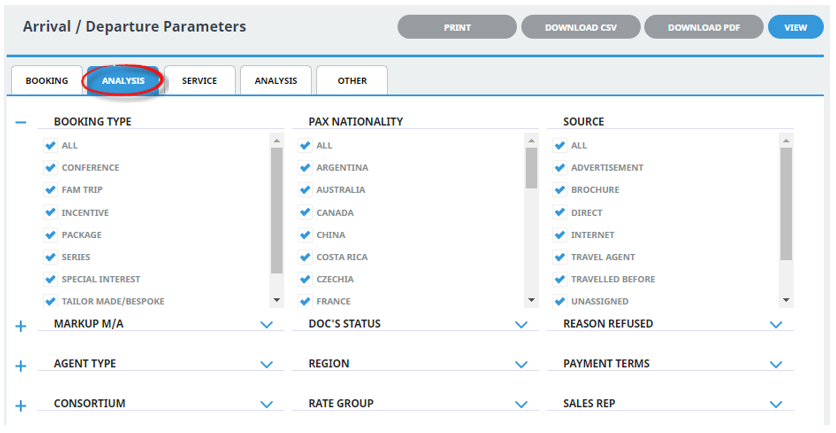
Booking Analysis Codes 1-6 - The top 6 Analysis fields are the Booking Analysis codes.
Agent Analysis Codes 1-6 - The bottom 6 Analysis fields are the Agent Analysis codes.
Multi select list of Analysis codes can be used to refine the report if necessary. To expand the fields use the +, and to minimise the analysis list use the -.
NOTE: Analysis codes in the above screen capture are used for training purposes. User company systems will have analysis fields and codes unique to their organisational requirements.
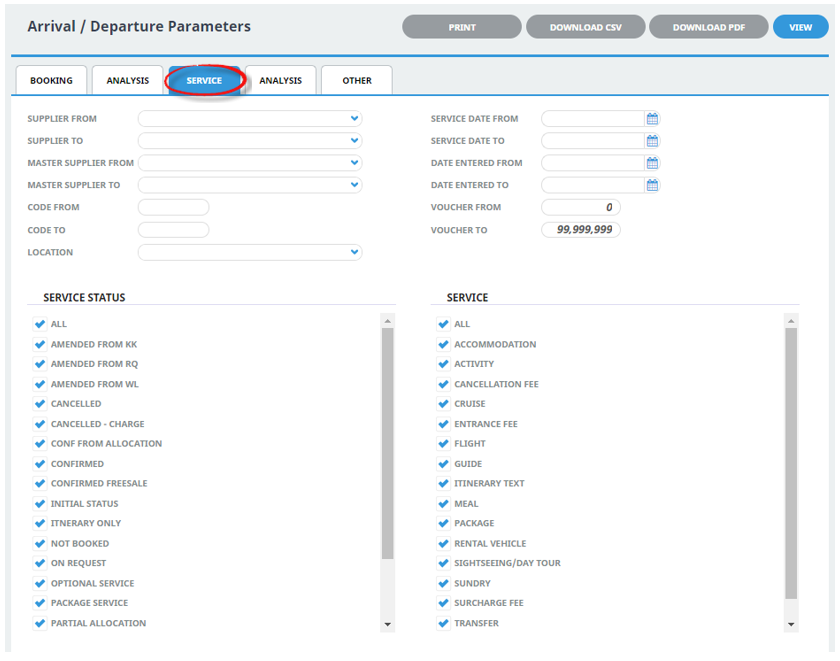
Supplier From and To - Supplier range available from the drop-down selection.
Master Supplier From and To - Master Supplier range available from the drop-down selection.
Code From and To - (Product) Code.
Location - Location code, selectable options are available in the drop-down.
Service Date From and To - The service line date (or range of).
Date Entered From and To - Service date entered (or range of).
Voucher From and To - The voucher number from and to. This will default to: From = 0 and To = 99,999,999 which will out put all vouchers that meet the selection criteria. Selection of specific voucher numbers (or range of) can be made.
Service Status - Multi select check boxes for available service statuses.
Service (Type) - Multi select check boxes for available services.
NOTE: Service Status, and Services showing in the screen captures above are for training purposes. Users company systems will reflect users organisational requirements.
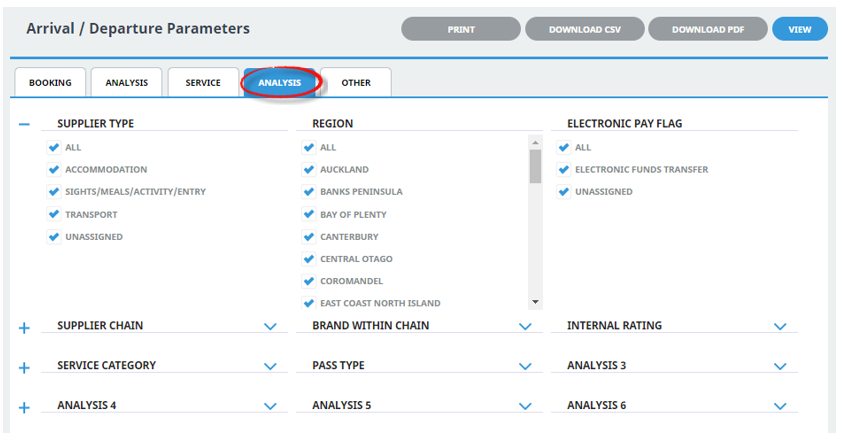
Supplier Analysis Codes 1-6 - The top 6 Analysis fields are the Supplier/Creditor Analysis codes.
Product Analysis Codes 1-6 - The bottom 6 Analysis fields are the Product/Service Analysis codes.
Multi select list of Analysis codes can be used to refine the report if necessary. To expand the fields use the +, and to minimise the analysis list use the -.
NOTE: Analysis codes in the above screen capture are used for training purposes. User company systems will have analysis fields and codes unique to their organisational requirements.
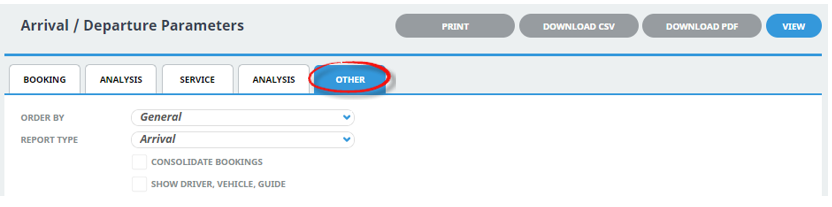
Order By - Drop-down selection to order data in the report by one of the following:
- General
- Pick Up
- Drop Off
- Agent
- Supplier (System Defaulted)
- Order By, Driver, Vehicle or Guide
Report Type - Drop-down selection to report on Arrival or Departure fields.
Consolidate Bookings - Check box to consolidate bookings.
Show Driver, Vehicle, Guide - Check box to output driver, vehicle and/or guide.