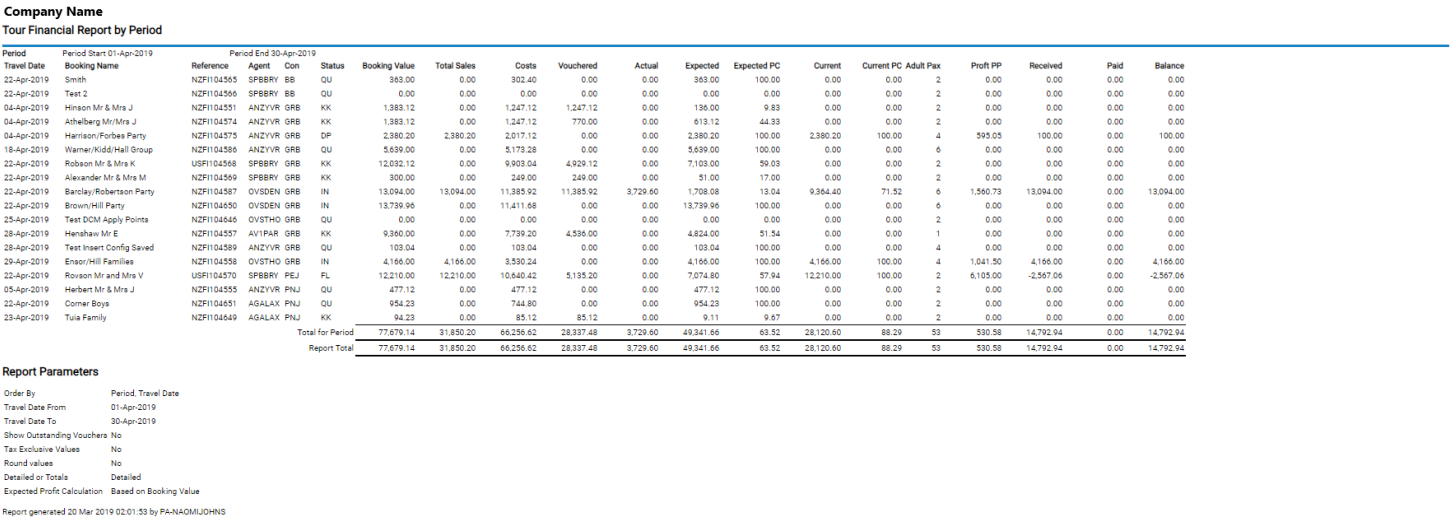
The Tour Financial Summary (TFS) reports key financial parameters, one line per booking, for a variety of purposes, but particularly detection of problems with tours or groups of tours (e.g., by department by consultant etc.) in the areas of:
- Under or Non-Invoiced bookings
- Cost overruns
- Margins outside acceptable range
- Cash collection
- Outstanding liabilities
It is commonly referred to as the 'Tourplan Bible'.
NOTE: The Tour Financial Summary report is often used in conjunction with the Tour Window. The Tour Financial Summary report summarises one booking per report line. The Tour Window provides an in depth look at the booking giving more than the summary detail of the Tour Financial Summary report. Information on the Tour Window is available in the Accounts User Manual
NOTE: When the report is output to View, PDF or CSV file the information available within the report is:
- Booking Travel Date
- Booking Name
- Booking Reference
- Agent Code
- Consultant (Initials)
- (Booking) Status
- Booking Value. (Agent vale - i.e., nett of any agent commission)
- Total Sales (invoices less credits)
- Costs (Service value)
- Vouchered (Value)
- Actual (Paid to suppliers to Date)
- Expected (Booking Profit, Booking Value less Vouchered Value)
- Expected PC (Expected Profit %)
- Current ((Profit) Total Sales less Actual Paid plus Outstanding Vouchers)
- Current PC (Current Profit %)
- (Number of) Adult (Pax)
- Profit PP (Per Person = Current Profit/Adult Pax)
- Received (Cash Received)
- Paid (Cash Paid)
- Balance (Cash Balance)
NOTE: Data can be ordered by specific options, and order by settings are selected within the Other Tab.
The report can be generated with the following parameters:
- Show Outstanding Vouchers - Check-box. Unchecked default. When checked, the 'Outs Vouch' column replaces the Vouchered column
- Tax Exclusive Value - Check-box. Unchecked default
- Rounded Values - Check-box. Unchecked default
- Show Detailed or Totals. Drop-down. Detailed default
- Expected Profit Calculation. (Based on Booking Value or Based on Invoice Value)
Generating a Tour Financial Summary Report
-
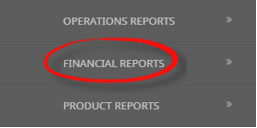
From the Home menu, select
 Home > Reports > Financial Reports > Tour Financial Summary.
- Click the Reports menu to expand it:

- Click the Financial Reports menu option to expand it:

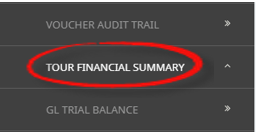
- Click Tour Financial Summary to go to the Tour Financial Summary Parameters screen:

- Click the Reports menu to expand it:
-
On the blank Tour Financial Summary Parameters screen, the Booking Tab will open, select the required parameters for the Tour Financial Summary Report.
NOTE: There are 2 tabs available to select parameters from. They are the Booking Tab and the(Booking & Agent) Analysis Tab.
- Check the completed screens.
- Click on the Other Tab. Select how the results are to be ordered and filtered in the report from the drop down selections or check boxes available.
- Select how the report is to display.
-
To view the report, clickView.

-
To Download the report to a PDF file, clickDownload PDF.

-
To Download the report to a CSV file, clickDownload to CSV.

-
To print from NX, clickPrint.


About Tour Financial Summary Parameters Fields
Booking Tab
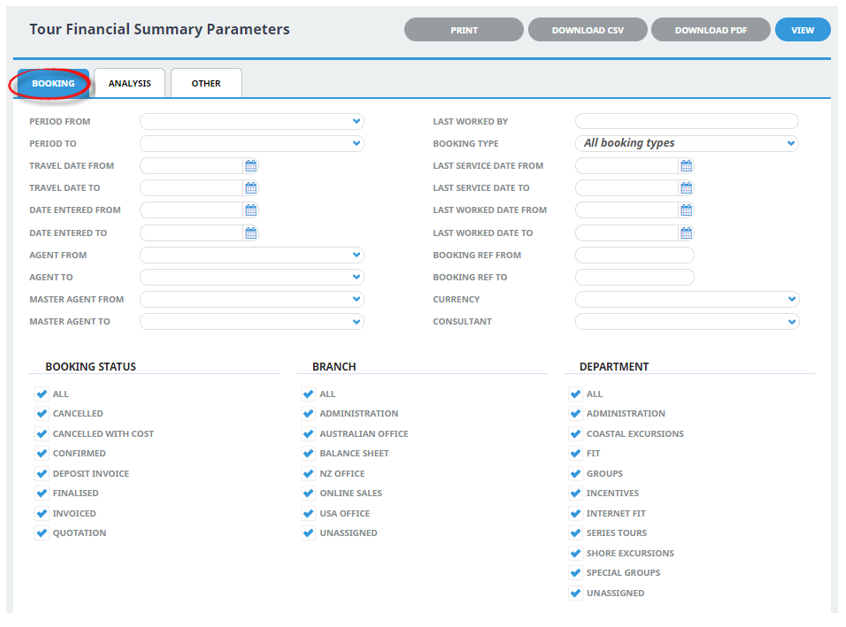
Period From and To - Travel date period (or range of).
Travel Date From and To - Booking travel date (or range of).
Date Entered From and To - Booking date entered.
Agent From and To - Booking agent range available from the drop-down selection.
Master Agent From and To - Debtor Master Agent (unlinked) range available from the drop-down selection.
Last worked by - Type the User/Consultants name.
Booking Type - Drop-down selection available for:
- All booking types (default)
- FIT's
- Groups
Last Service Date From and To - Booking header last service date.
Last Worked Date From and To - Booking header last worked date.
Reference From and To - Booking Reference (or range of)
NOTE: If booking reference is selected as a filter the branch and department selection check boxes will need to reflect the booking reference branch and department or have 'All' selected.
Currency - Drop-down selection of available currencies.
Consultant - Drop-down selection for booking consultants name and initials.
Booking Status - Multi select check boxes for available booking header statuses.
Branch - Multi select check boxes for available booking reference branch.
Department - Multi select check boxes for available booking reference department.
NOTE: Service Status, and Branch and Departments showing in the screen captures above are for training purposes. Users company systems will reflect users organisational requirements.
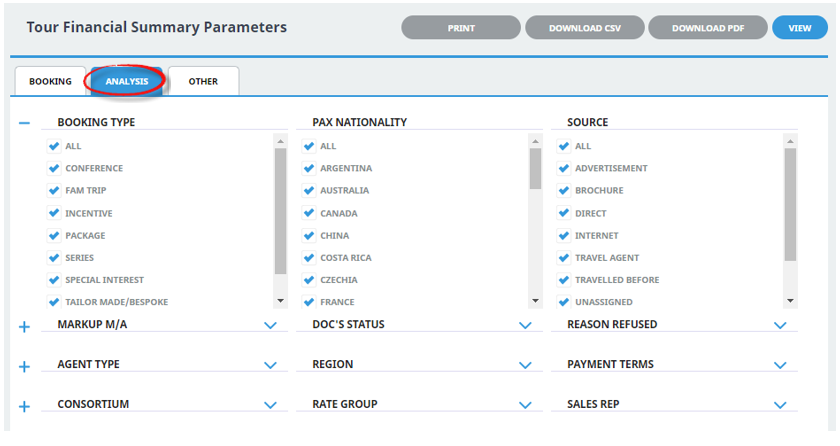
Booking Analysis Codes 1-6 - The top 6 Analysis fields are the Booking Analysis codes.
Agent Analysis Codes 1-6 - The bottom 6 Analysis fields are the Agent Analysis codes.
Multi select list of Analysis codes can be used to refine the report if necessary. To expand the fields use the +, and to minimise the analysis list use the -.
NOTE: Analysis codes in the above screen capture are used for training purposes. Users company systems will have analysis fields and codes unique to their organisational requirements.
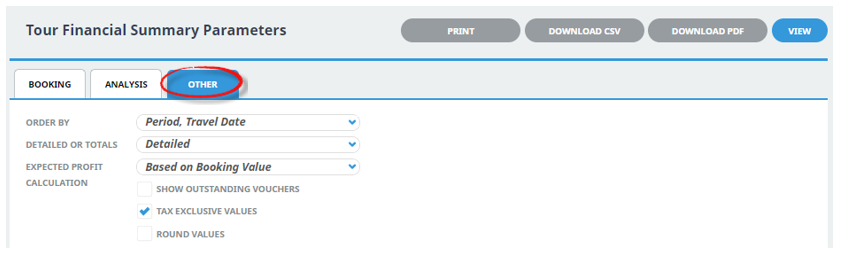
Order By- Report data can be selected by using the drop down to order by:
- Period, Travel Date (Default)
- Branch, Department, Period, Travel Date
- Consultant, Period, Travel Date
- Agent, Period, Travel Date
Detailed or Totals - Selection of Detailed or Totals.
Expected Profit Calculation - Report data can be selected to show:
- Based on Booking Value
- Based on Invoice Value
Show Outstanding Vouchers - Check box.
Tax Exclusive Values - Check box, defaulted as checked.
Round Values - Check box.