G.L. Standing Journals are able to be set-up in the Accounting application under Standing Journals Setup.
Standing Journals are journals for fixed amounts that are processed on a periodic (usually monthly) basis. A few examples of standing journals are:
- Rent payments.
- Fixed salary amounts.
- Monthly insurance payments.
- Monthly depreciation.
There are two stages to standing journals:
- Setting up journals.
- Processing journals.
Standing Journals Setup
-
From the Home Menu select
 Home > Financials > Accounting > General Ledger > Standing Journal Setup.
- Click the Home Menu to expand it:

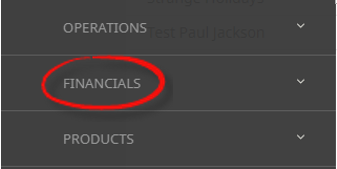
- Click the Financials menu option to expand it:

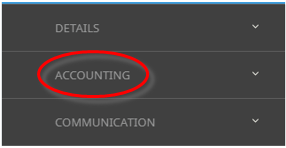
- Click Accounting to go to the Accounting menu to expand it:

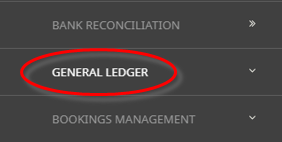
- Click General Ledger to go to the General Ledger menu to expand it:

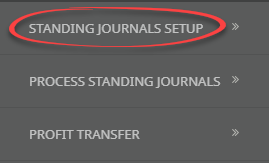
- Click Standing Journals Setup to go to the Standing Journal Set-up screen:

- Click the Home Menu to expand it:
-
Any existingStanding Journals display.

-
To create a new Standing Journal, clickInsert Journal.

-
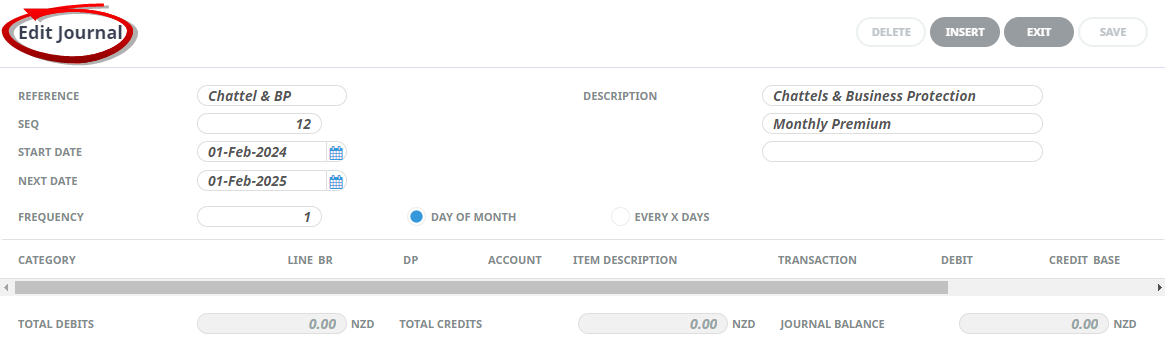
TheEdit Journal Screen will display.
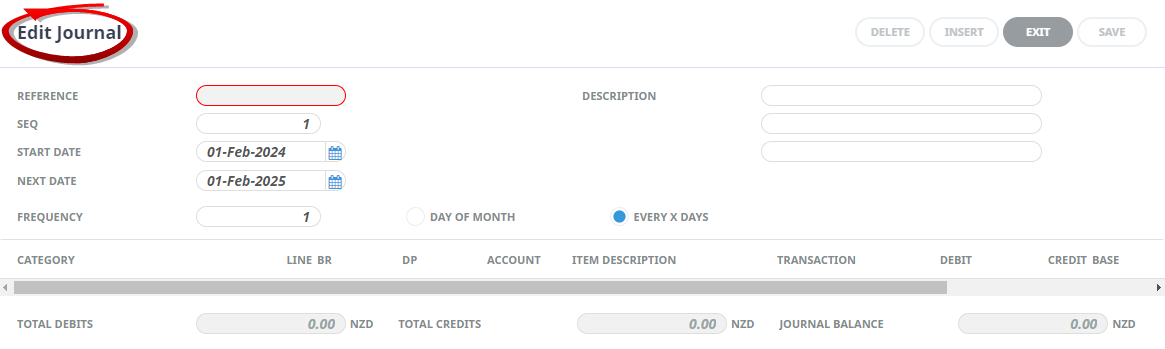 NOTE: The Reference is a mandatory field. Once the Reference field is completed the Insert button becomes active.
 -
When the Standing Journal Header is completed, clickInsert.

-
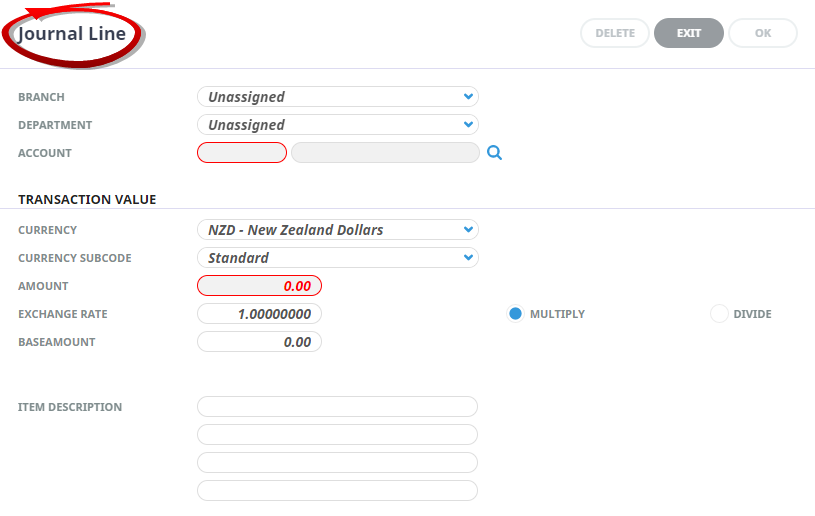
TheJournal Line screen will display. The Journal Line screen represents one line of the Standing Journal - either a debit line or a credit line.
-
When each Standing Journal line is completed, clickOK.

- The Journal Line screen will automatically re-display ready for another entry.
-
When all lines have been added, clickExit. The Journal Lines will display.

-
When all lines have been added exit the Journal Lines screen and clickSave to save the Journal.


About Edit Journal Fields
Reference
Enter a journal Reference to identify the standing journal.
NOTE: If automatic journal referencing is being used, then any reference entered here will be discarded and the next journal reference will take precedence when the journals are created.
Sequence
This is a number which increments each time the journal is processed, and is appended to the Journal Reference.
Start Date
Enter the date that the Standing Journal will be first used.
Next Date
This date indicates the periodic spacing between the start date and next date. e.g., the Start Date could be 01 February, and the next date 01 March (if the journal is to be processed on a monthly basis).
Frequency
This field determines how often the standing journal needs to be generated. The values available are by:
- a specific day of the month - e.g. 1st of the Month or,
- every nn number of days.
Description
Three lines of journal description fields are available.
About Journal Line Fields
Branch/Department/Account
These three fields are used to select a G.L. account to be debited or credited in this journal line. Alternatively, clicking the Browse button  next to the account field will display the list of G.L. accounts (based on any Branch/Department search criteria entered.
Currency
By default, the system base currency displays. If this journal line is to be in a different currency, select the currency to use from the drop-down list.
NOTE: Journals can have lines with different currencies in them—i.e., there can be a debit line in USD and a credit line in AUD. Provided the net balance of the journal is 0.00 in base currency, any combination of currencies are able to be used in a single journal.
Currency Subcode
If foreign currency subcodes are being used, select the correct code.
Amount
Enter the debit or -credit amount of this journal line.
NOTE: A positive amount is a debit and negative amount is a credit.
Exchange Rate
If a currency other than base currency has been selected for this line, enter an exchange rate in this field to convert the foreign currency amount to base currency.
Multiply/Divide
The exchange rate can be shown as either a multiplier or divider by clicking the appropriate radio button.
Base Amount
This is the foreign currency in the Amount field converted at the exchange rate in the Rate field to base currency. This amount can be manually edited.
NOTE: If the base amount is edited, the foreign currency amount in the Amount field will change, using the exchange rate in the Rate field.
Item Description
These lines can be used to enter a detailed description specific to the line.
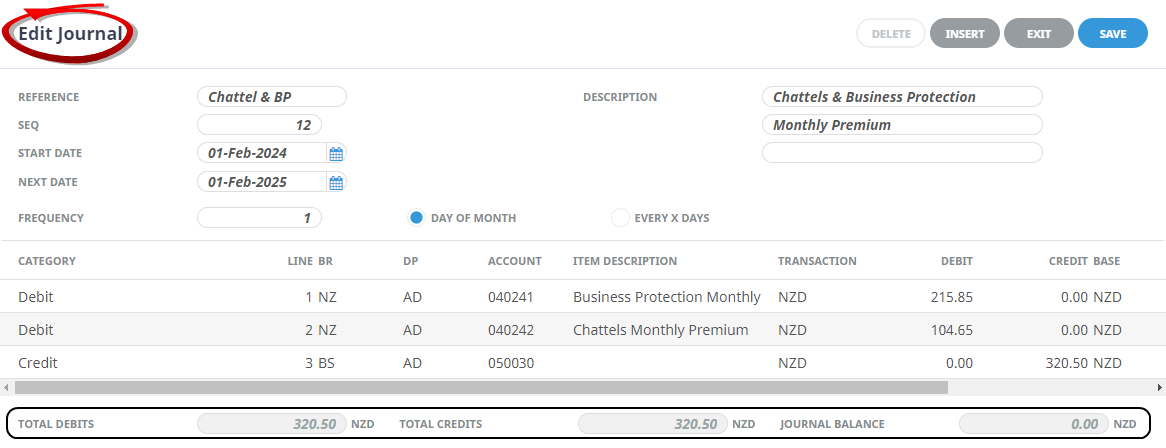
NOTE: The sum of Debits and Credits in the Journal must equal 0.00 before the Journal can be exited.