If user organisations are using iCom, booking activity can be monitored and bookings can be actioned. Filters are selected and a list of bookings will show the action of the booking or modified via any of the Internet Add-Ons over a selected date/time range. Bookings can be searched for using filters such as travel date, iCom activity date and time, and other selections such as booking status or by branch/department.
This report would be used for operational monitoring of iCom bookings, and to provide users with up to date information for operational updates to the booking. For example Users are able to update the booking status of bookings in bulk or individually, and are able to send a queued message to a consultant to monitor the booking in Tourplan.
Booking status and assigning of consultants can be done from the activity report, and diary messages can be attached to bookings as a reminder.
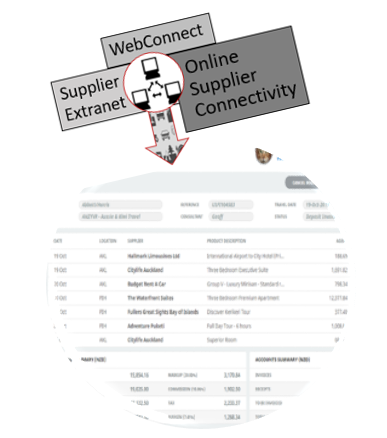
NOTE: HostConnect is an additional component of the Tourplan NX system and training on its use is given when it is installed.
iCom Activity Report
-
From the Home menu, select
 Home > Operations > Booking Operations > iCom Activity.
- Click the Home Menu to expand it:

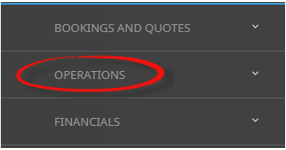
- Click the Operations menu option to expand it:

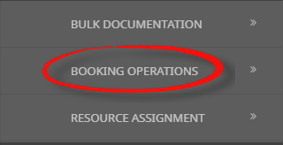
- Click Booking Operations menu option to expand it:

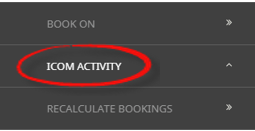
- Click iCom Activity to open the iCom Activity screen:

- Click the Home Menu to expand it:
-
On the blankiCom Activity screen, the Bookings Tab will open, select the required filters from the field selections available within the Booking Tab,and the Analysis Tab.
View About iCom Activity Booking Fields to learn more about all the field selections available, or view the individual tab filters: Booking Tab, Analysis Tab, or Results Tab.
NOTE: iCom Activity From/To Dates and times, and Action Status are defaulted to system settings, (Today’s date and time, and a service status similar to Not Actioned), these fields can be amended to suit iCom Activity report requirements.
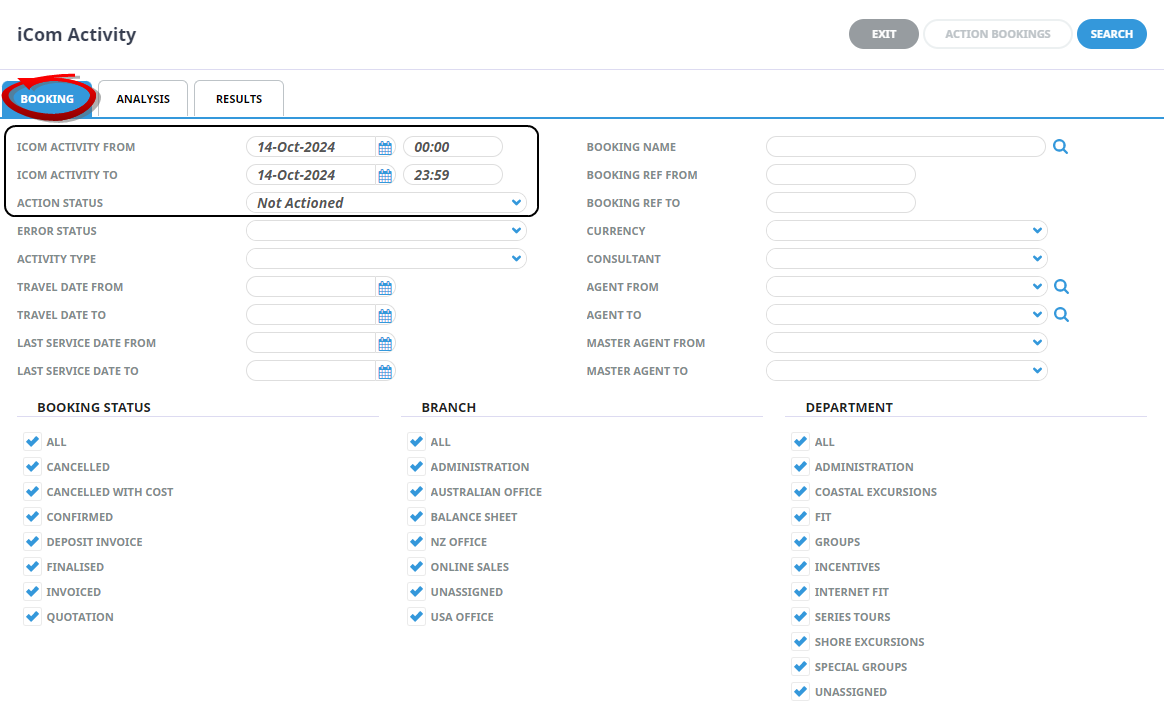
Booking Tab
Filters used in this screen capture are examples used for Training purposes, Status Branch and Department selection will reflect users own organisational fields.
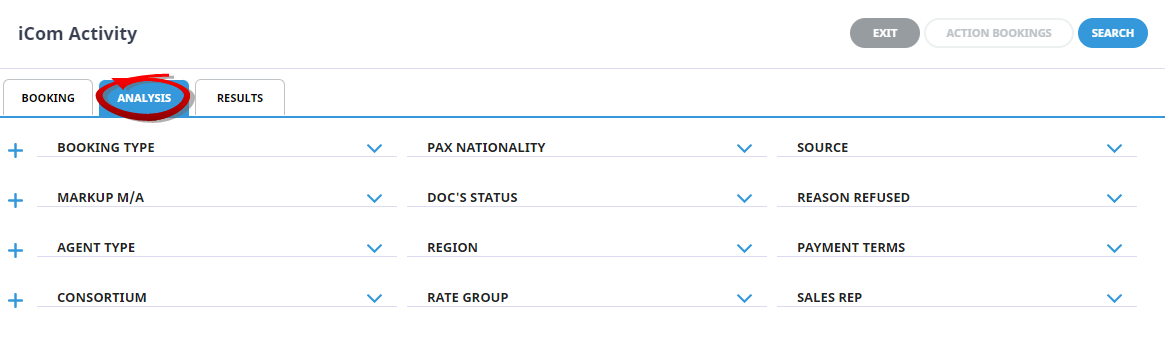
Analysis Tab
Analysis Codes used in this screen capture are examples used for Training. Analysis field headings and codes will reflect users own organisational fields.
- Check the completed screens.
-
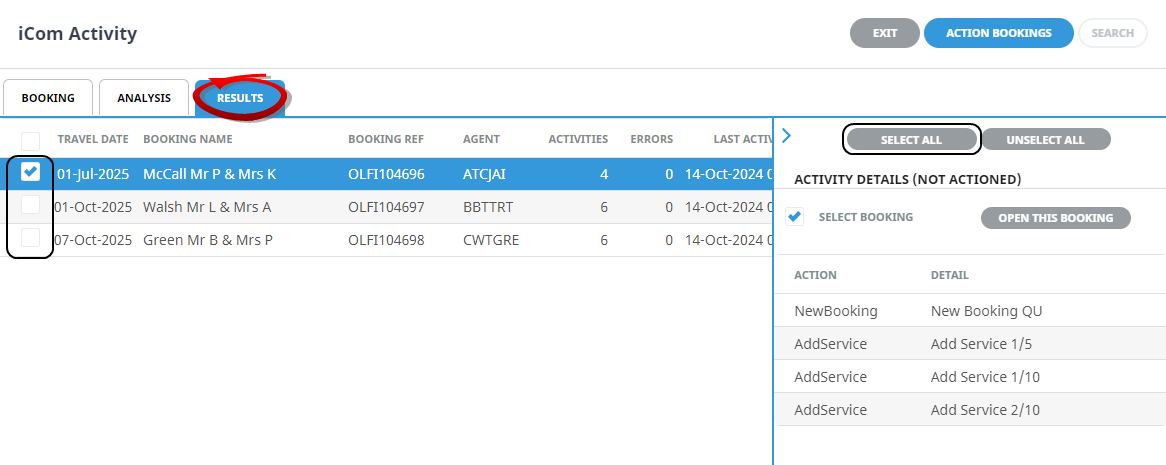
Click on theResults Tab. Select the bookings using the Check-boxes next to each booking, or use Select All. Click on the link provided to learn more about the Results Tab.
-
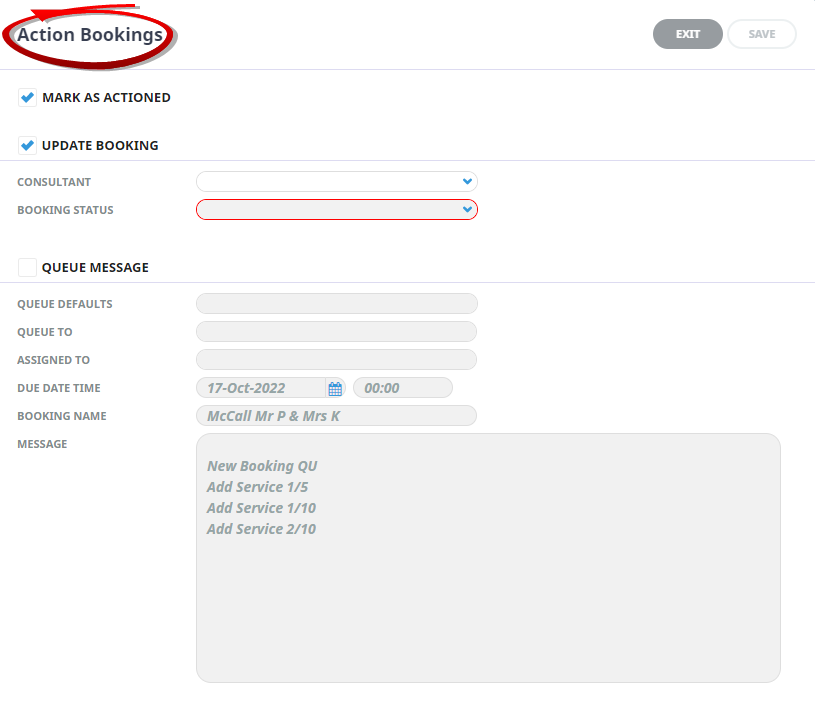
If selected bookings are to be actioned, clickAction Bookings. Click on the link to view Action Bookings Settings.

If one booking is selected, information specific to the booking can be actioned.
Booking status can be updated, the booking can be marked as actioned, a consultant can be assigned and a message can be queued to a colleague. Message information will generate from the Actioned Detail on the previous screen or further detail can be included in the free format.
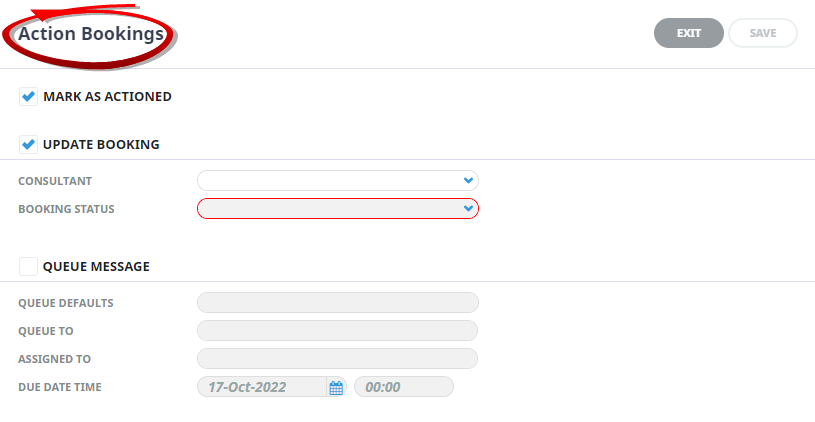
If multiple bookings are selected, the action bookings will have a reduced Queue Message selection available.


About iCom Activity Booking Fields
Booking Tab
This screen is in two sections. The top section includes 'Current Service' field selections and 'Booking Filter' selections. The bottom section includes selection for Booking Status, Service Status, Branch and or Department.
iCom Activity (Date) From/To
Used to select services with a specific, or range of, travel dates of the iCom bookings to be selected. Bookings that were created or altered within this date range will be selected.
iCom Activity (Time) From/To
Used in conjunction with the Date From/To, giving a specific time range of the iCom bookings to be selected. Bookings that were created or altered within this time will be selected.
Action Status
System setup setting with iCom, this will default to Not Actioned however selection of another action status can occur. Action Statuses available are:
- Actioned
- All
- Not Actioned (defaulted)
Error Status
Error statuses are recorded when the request has errored . Statuses available are:
- All
- Error
- No Error
Activity Type
Activity types are recorded when a booking is created or updated . Activity types are:
-
Add Service
-
Agent Advice
-
Cancel Service
-
New Booking
-
Quote To Book
-
Transaction Create
-
Update Booking
-
Update Service
Travel Date From/To
Travel date for bookings is the date that appears in the header of a booking this is generally the date of the first service. This date range field is used to select bookings with a specific date, or iCom bookings that fall within a range of travel dates.
Last Service Date From/To
This is the last service date for a service in the iCom bookings. If selection for a range of dates is entered here bookings that have services within the date range provided will be display in the results screen.
Booking Name
Results for a specific booking name can be returned if a booking name is specified. The search function in Tourplan can be used if the booking name is unknown, by selecting the search button (magnifying icon). Additional filters to search for specific bookings can be used.
Booking Reference From/To
Specific reference numbers or range of, can be selected to return results.
Currency
Dropdown selection of pre-defined currencies can be selected, this will return results for bookings with the specified currency.
Consultant
The consultant code attached to the bookings whose messages are to be output.
Agent From/To
Used to select services with a specific, or range of, agent(s) codes in the booking header matching the selection.
Master Agent From/To
Used to select services with a specific, or range of, Master Agent code(s) in the booking header matching the selection.
Booking Status
By default, all booking statuses are checked and bookings that have those status will be selected. Un-check statuses that are not required.
Branch
By default, all branches are checked and bookings that have those branches will be selected.
Department
By default all departments are checked, bookings that have those branches will be selected.
Analysis Tab (Booking and Agent Analysis)
Booking Analysis
The top two rows of this tab are the 6 Booking Analysis codes. These are booking level selections.
Agent Analysis
The bottom two rows of this tab are the 6 Agent Analysis codes. These are Agent Analysis codes attached to the booking.
Analysis fields can be expanded or minimised by using the + or - function.
NOTE: The label descriptions and analysis selections used within this User Manual will vary and will display what has been setup in each users companys system.
Results Tab
Selected check boxes
Bookings can be individually selected.
Select All/Unselect All
Select all bookings found, or un-select all bookings selected.
Select Bookings
This check box will allow you to un-select a booking. The booking needs to be highlighted first before you can select or un-select.
Open this Booking
Selecting this will open the booking in another tab (organisations that have professional or enterprise editions - can have multiple tabs can be open).
Action and Detail
The list provided will show the action that has occurred in iCom and detail the action.
Column Headings
Users can customise their column headings by clicking on the header row, or can amend the order of results by clicking on the field heading, see About Changing Default Column Headings.
To view the available column headings in iCOM Activity, see Booking Operations.
NOTE: The data can be sorted by any column by double clicking the column header. The order can then be reversed by double clicking the column header again.
About Action Bookings Settings
Mark as Actioned
Selection.
Update Bookings
Booking information can be updated:
- A Consultant can be assigned to the booking.
- The Booking Status can be updated.
Queue Messages
When this check box is selected the Queue/Messaging fields will activate.
If multiple booking are selected you will have the option to select:
- Queue Defaults - A selection of Queue Defaulted messages (Mandatory).
- Queue To - Who the message is queued to (if Queue Groups have been setup).
- Assigned To - Who the message is assigned to.
If one booking is selected additional messaging fields will also activate, including:
- Booking Name - The name of the booking, this is a read only field.
- Message - Information will display from the Action Description, additional information can be typed in the Message field.