The External Selling Price functionality has some basic rules:
- External Services are only available for F.I.T. Bookings. They are not available for Groups or PCM's.
- These rules are only ever used when Tourplan is connected to external supplier systems - e.g., Hotel Reservations, Rental Vehicle Reservations etc.
- Rates must exist in the Tourplan Product Database for the prices received back from the external system to be compared to.
The External Selling Price set-up screen Is a method of managing rules to apply in given sets of circumstances when services are requested from and costs are received from external supplier systems.
The agreements Tourplan User Companies have with the Suppliers will detail what the costs are that are being returned from the External System - the Cost or the Agent Price, so the External Selling Price matrix allows rules to be established that will apply the correct mark-ups.
This means that the correct mark-up/margins can be obtained regardless of whether the service is sourced from the Internal Product Database or the External system.
When the cost is recieved back from the External System there are three potential scenarios:
- The External Cost is Higher than the Internal Cost
- The External Cost is Lower than the Internal Cost
- The External Cost is Equal to the Internal Cost
How the correct mark-up/margin is arrived at is controlled by the External Selling Price Rule. It allows the specification of Supplier, Product, Booking and Agent filter criteria, and then a date based specification of how the sell price is to be established.
Each record has Service From/To dates and Sale From/To dates which means that mark-ups can be set for specific periods or seasons.
For each of the above three scenarios the options are:
- Use External Cost Apply no margin (mark-up) and use the cost price as the sell price.
- Apply Internal Margin - Apply the margin (mark-up) from the Tourplan Internal Product that would have applied for the booking agent, for this service, on this date, for this room configuration (number of pax), for this length of stay if the Internal rate had been booked.
- Use Internal Selling Price - Apply the sell price from the Tourplan Product the agent would have got for this service, on this date, for this room configuration, for this length if the Internal rate had been booked.
The External Selling Price rules are stored as a special type of Discount/Mark-up/Commission record and the rules around the creation of External Selling Proce rules are the same as for the Discount/Mark-up/Commission records.
Create an External Selling Rule
-
Select menu
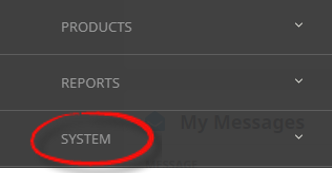
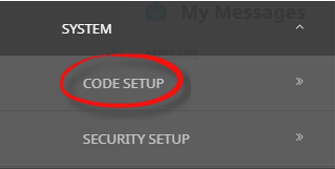
 Home > System > Code Setup.
- Click the Home menu to expand it:

- Click the System menu option to expand it:

- Click Code Setup to go to the Code Setup menu:

- Click the Home menu to expand it:
-
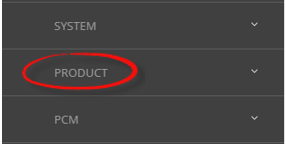
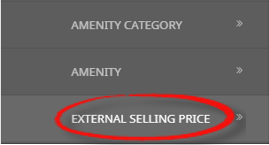
Select menuCode Setup > Product > External Selling Price.
- Click the Code Setup Menu to expand it:

- Click the Product menu option to expand it:

- Click External Selling Price to open the External Selling Price matrix screen:

- Click the Code Setup Menu to expand it:
-
On theExternal Selling Price screen, if the Sequence/Code required is not already in the list, click Insert or select the record from the list.

-
On theExternal Selling Price screen, enter a Sequence, Code and Description.

-
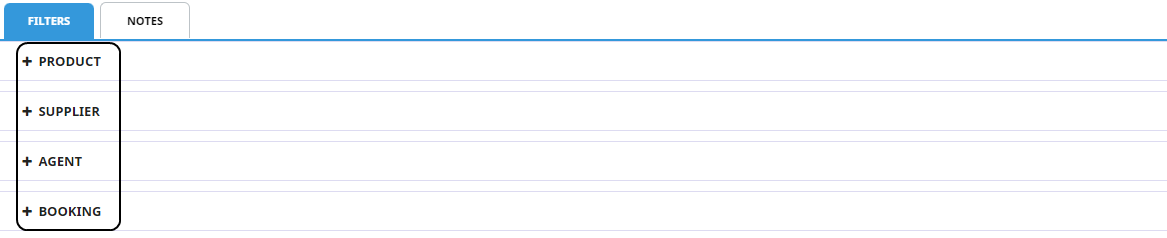
On theFilters Tab screen, use the + to expand the required headings and select the required filters.
-
On theDate Range screen section, click Insert.

-
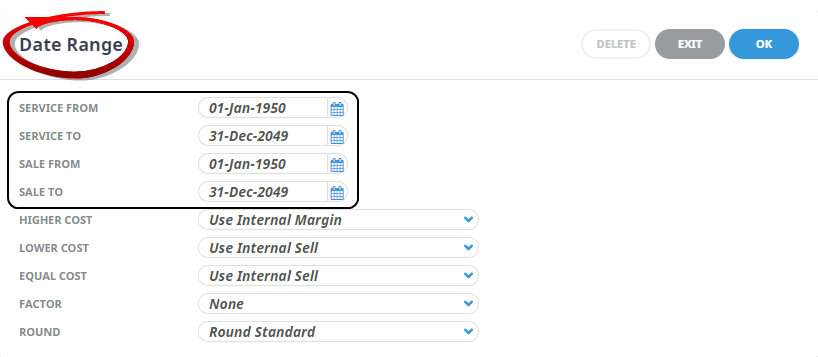
On theDate Range screen, select a Service From/To and Sale From/To dates (if applicable).
-
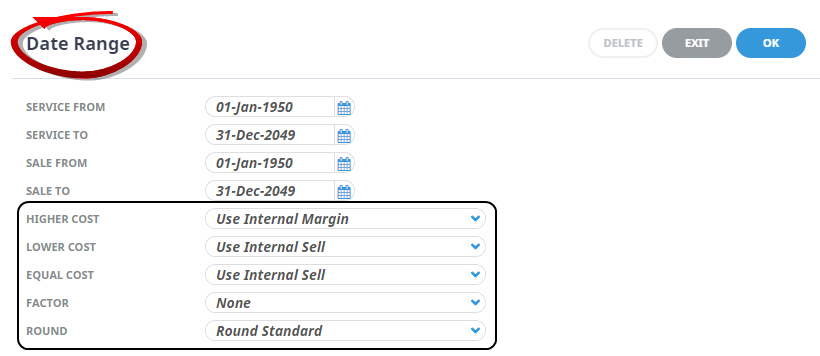
Continuing with theDate Range screen, select settings (where applicable) for higher cost, lower cost and equal cost, and select the factor and rounding rule.
-
ClickOK to keep the changes and save or update the entry.

-
ClickExit to discard any changes.



About External Selling Price Fields
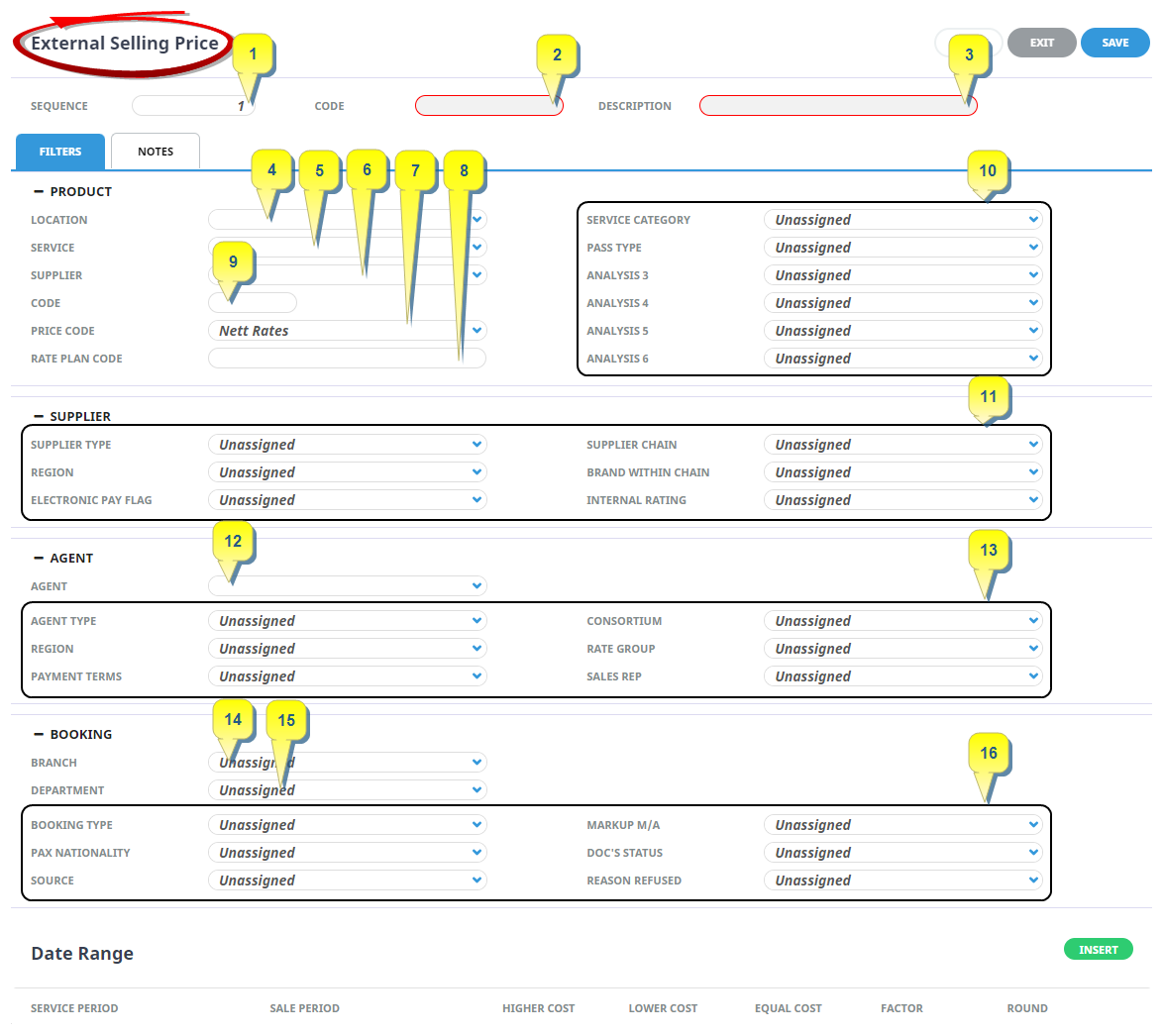
External Selling Price Record Header
1. Sequence
This field will determine the order in which the External Selling Price rule will be used.
2. Code
Unique code to identify the External Selling Price record.
3. Description
A full description of what the External Selling Price entry is.
External Selling Price Rules
There are two tabs below the header fields. (A Filters Tab and a Notes Tab)
Filters Tab
The filter fields set the criteria on how the External Selling Price will be calculated when the services are inserted into a booking. Multiple selections can be made.
There are four expandable options that will allow rules to be created:
- Product Selections (4-10) (Open by default).These are the Product Location, Service, Supplier (Code), Product Code, Price Code, Rate Plan Code, and the Product Analysis Codes.
- Supplier Selections (11) are the Supplier analysis Codes. The supplier code is included with the Database selections.
- Agent selections (12-13) include the Agent Code and the Agent Analysis fields.
- Booking Selections (14-16) include specific Booking Branch, Department and Booking Analysis Codes.
Date Range
These fields control the period that the External Selling Price record is to apply for as well as the type of Cost to be applied.
NOTE: Multiple dates can be entered or an unrestricted date range can occur.
Service From / Service To
These dates are tested against the Product Date Range(s). If the service date(s) being requested fall inside these Service From/To dates, and all other selection criteria are met, the External Selling Price rule will be applied.
Sale From / Sale To
If a special being offered is only able to be booked during a specific period, the dates the External Selling Price rule applies can be limited by using these fields. These are tested against the Sale Date From/To dates in the Product. If the service entered into the Booking matches all other selection criteria and today's date is between these dates, then the discount/commission/mark-up will be applied.
Higher Cost
Where the External Cost is Higher than the Internal Cost, there are three options available:
- Use External Cost - Apply no margin (mark-up) and use the cost price as the sell price.
- Use Internal Margin - Apply the margin (mark-up) from the Tourplan Product that would have applied for the agent for this service, on this date, for this room configuration, for this length of stay if the Internal rate had been booked.
- Use Internal Sell - Apply the sell price from the Tourplan Product the agent would have got for this service, on this date, for this room configuration, for this length if the Internal rate had been booked.
Lower Cost
Where the External Cost is Lower than the Internal Cost, there are three options available:
- Use External Cost - Apply no margin (mark-up) and use the cost price as the sell price.
- Use Internal Margin - Apply the margin (mark-up) from the Tourplan Product that would have applied for the agent for this service, on this date, for this room configuration, for this length of stay if the Internal rate had been booked.
- Use Internal Sell - Apply the sell price from the Tourplan Product the agent would have got for this service, on this date, for this room configuration, for this length if the Internal rate had been booked.
Equal Cost
Where the External Cost is Equal to the Internal Cost, there are three options available:
- Use External Cost - Apply no margin (markup) and use the cost price as the sell price.
- Use Internal Margin - Apply the margin (markup) from the Tourplan Product that would have applied for the agent for this service, on this date, for this room configuration, for this length of stay if the Internal rate had been booked.
- Use Internal Sell - Apply the sell price from the Tourplan Product the agent would have got for this service, on this date, for this room configuration, for this length if the Internal rate had been booked.
Factor
How the system is to apply rounding.
The choices are:.
| Setting | Rounding Explanation |
|---|---|
| None | No Rounding will apply |
| 0.10 | Round to the nearest .10c |
| 0.50 |
Round to the nearest .50c |
| 1 | Round to the nearest 1.00 |
| 5 | Round to the nearest 5.00 |
| 10 | Round to the nearest 10.00 |
Round
Indicates how the system will round the value of the service after the External Selling Proce rule has been applied and based on any value in the Factor field.
Available options are:
| Setting | Rounding Explanation |
|---|---|
| Standard | Round down between .01 - .49, up between .50 - .99 |
| Up | Will always round up to the nearest factor value |
|
Down |
Will always round down to the nearest factor value |

Notes Tab
In addition to the Filters Tab, there is an area that can be used for additional notes. In the Notes tab there two areas.
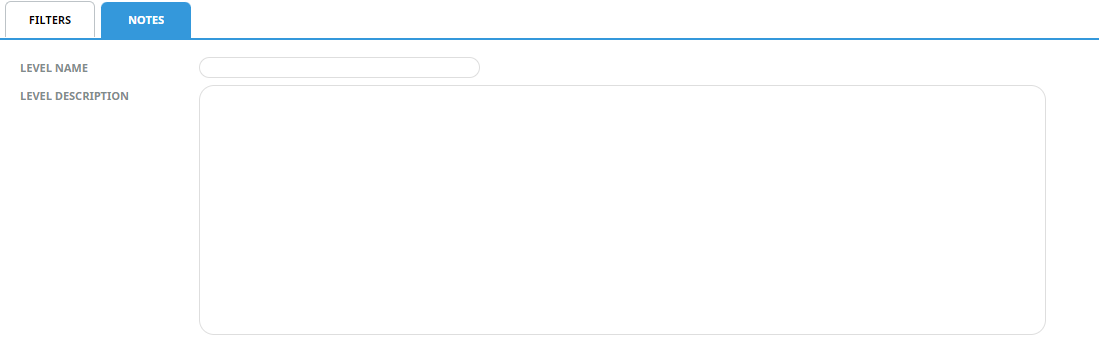
Level Name
This field can be used to appear in messaging, similar to the Rate Text field in Product.
Level Description
A free format text area to be used for internal notes for perhaps more detail of the special etc.