Once you have decided on your security requirements, you can choose to allow or deny access to the various Tourplan applications either by User or by User Groups.
The next section of this User Manual will provide instruction on how to set security settings by Group or by User.
Careful planning together with assistance from your local Tourplan Support Office should have been undertaken prior to entering this procedure.
Further understanding on low level and high level security settings can be seen on the previous pages of this User Manual.
Set Security Levels By Group
-
From the Home menu, select
 Home > System > Security Setup.
- Click the Home menu to expand it:

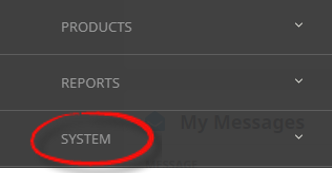
- Click the System menu option to expand it:

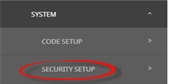
- Click Security Setup to go to the Security Setup menu:

- Click the Home menu to expand it:
-
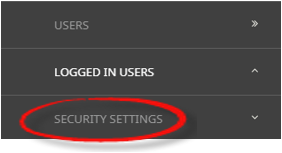
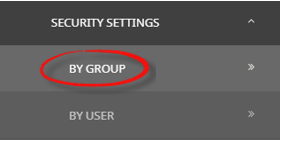
From the Security Settings menu, selectBy Group.
- Click Security Settings to open the Security Setting menu:

- Click By Group to open the User Group System Function screen:

- Click Security Settings to open the Security Setting menu:
-
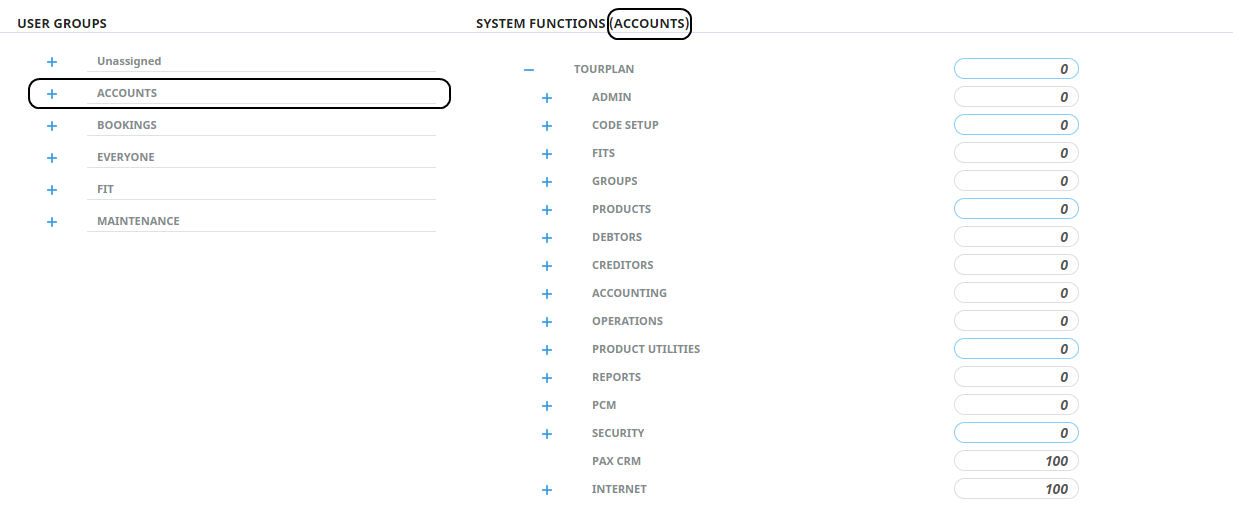
On theUser Groups System Function screen, select the Group, so that the Group Name appears in brackets next to the heading.
-
In theSystem Functions enter the applicable Numeric Security Number required next to each function within the application, at the appropriate level.
.png)
- Review the completed screen.
-
ClickSave to keep the changes.

-
ClickExit to discard any changes.


Override Security Levels by User
-
From the Home menu, selectHome > System > Security Setup.
- Click the Home menu to expand it:
- Click the System menu option to expand it:
- Click Security Setup to go to the Security Setup menu:
- Click the Home menu to expand it:
-
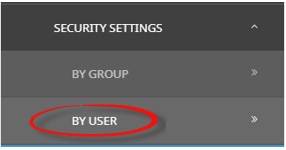
From the Security Settings menu, selectBy User.
- Click Security Settings to open the Security Setting menu:
- Click By User to open the Users System Function screen:

- Click Security Settings to open the Security Setting menu:
-
On theUsers System Function screen, click Insert and select the User Name to override the users security.

-
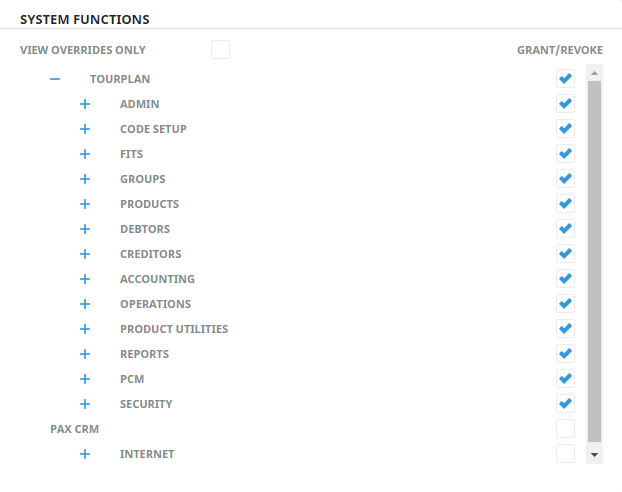
In theSystem Functions column, select the applicable application (or expand the application for further application functions), use the check box to grant the User access or, de-select to revoke their access.
-
ClickSave to keep the changes.
-
ClickDiscard to discard all changes.